Configure your email account in Microsoft Outlook

Configure your email account in Microsoft Outlook

In this tutorial, we'll show you how to set up your Webzi email account in Microsoft Outlook.

1. Open Microsoft Outlook:
   - Open Microsoft Outlook and go to File > Add account.
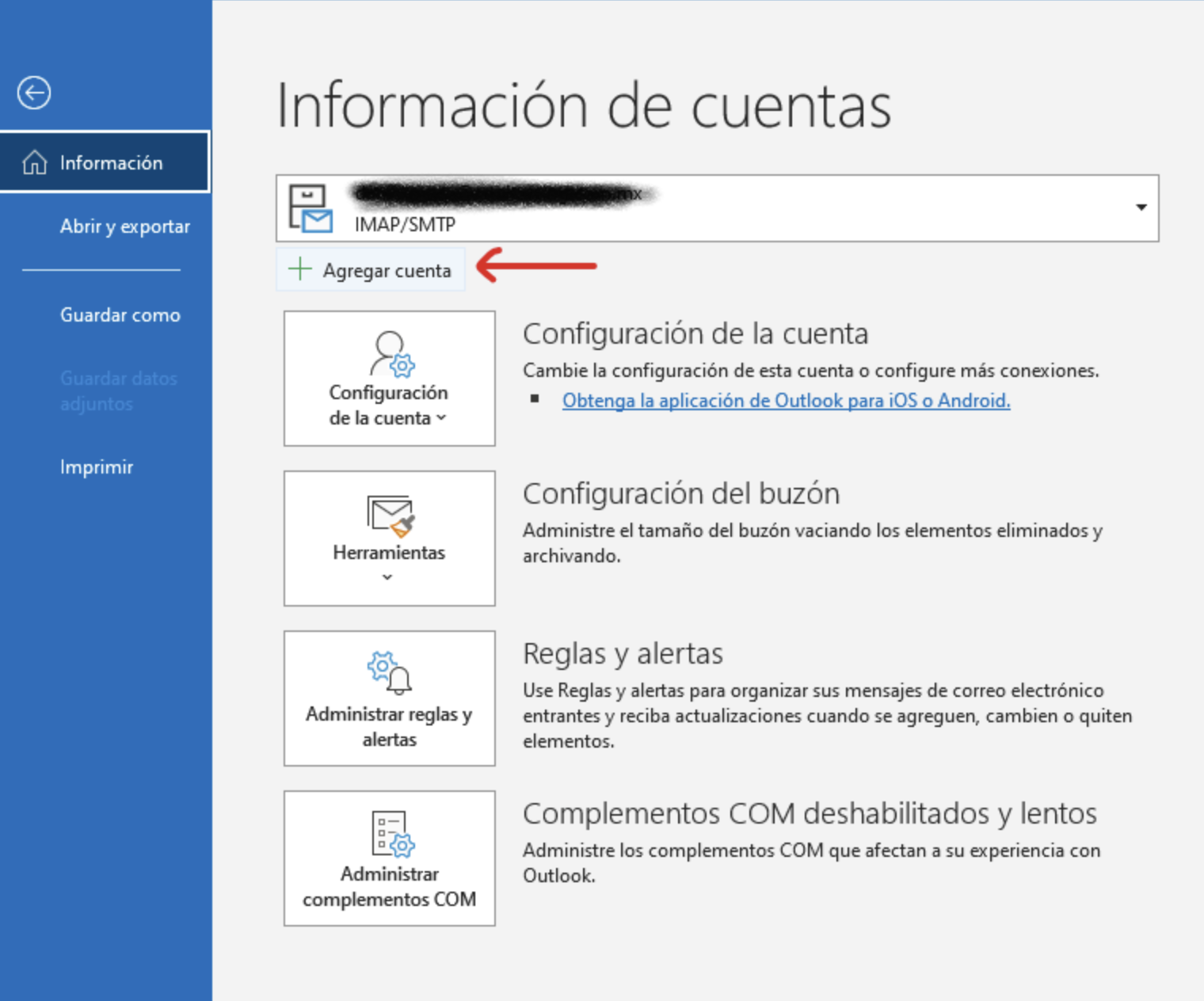
2. Enter Account Information:
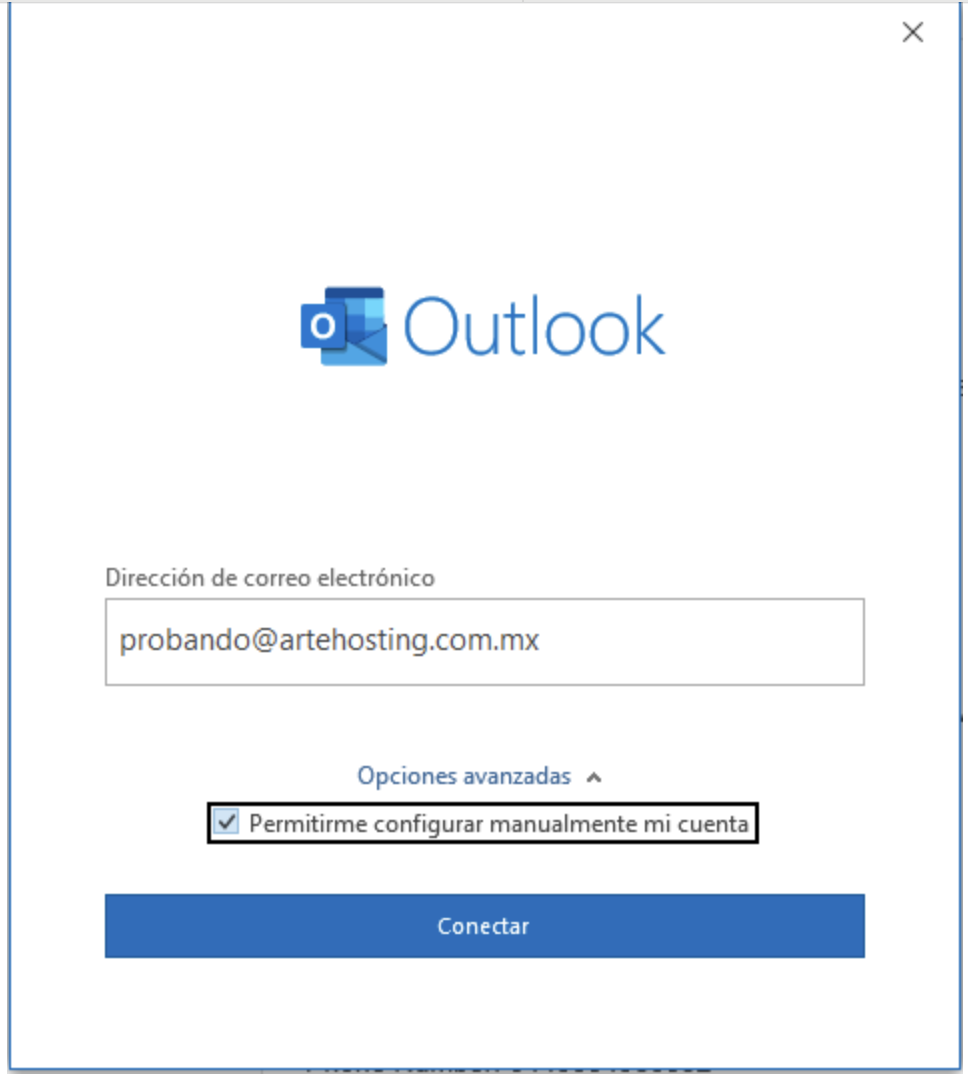
   - Enter your email address and check the box "Let me set up my account manually".
   - In most cases, the setup is detected automatically. If you encounter any error during the process, manually configure the ports and the incoming and outgoing servers following this article: Email Client Configuration.
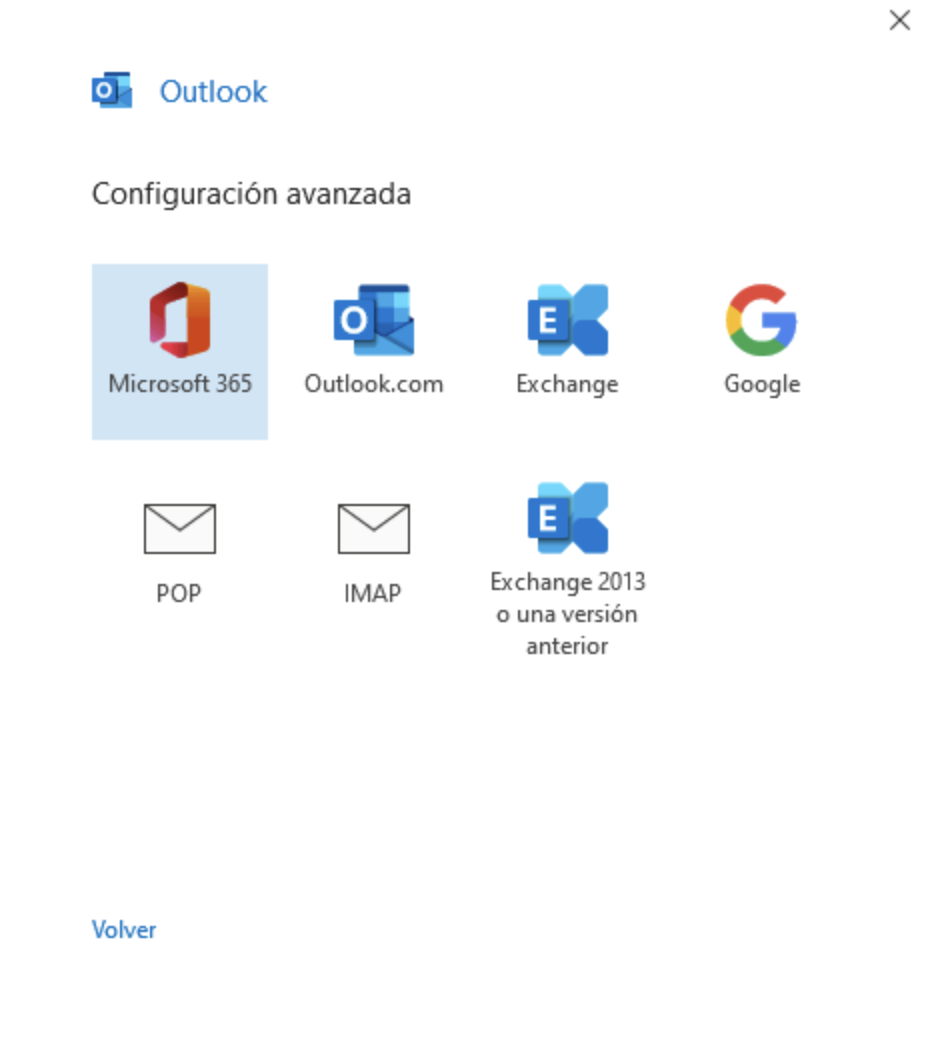
3. Select Account Type:
   - Click "Connect" and on the next screen select "IMAP".
   - You can also choose POP3, although it's not the recommended protocol currently. You can see the differences in this article: Email Client Configuration.
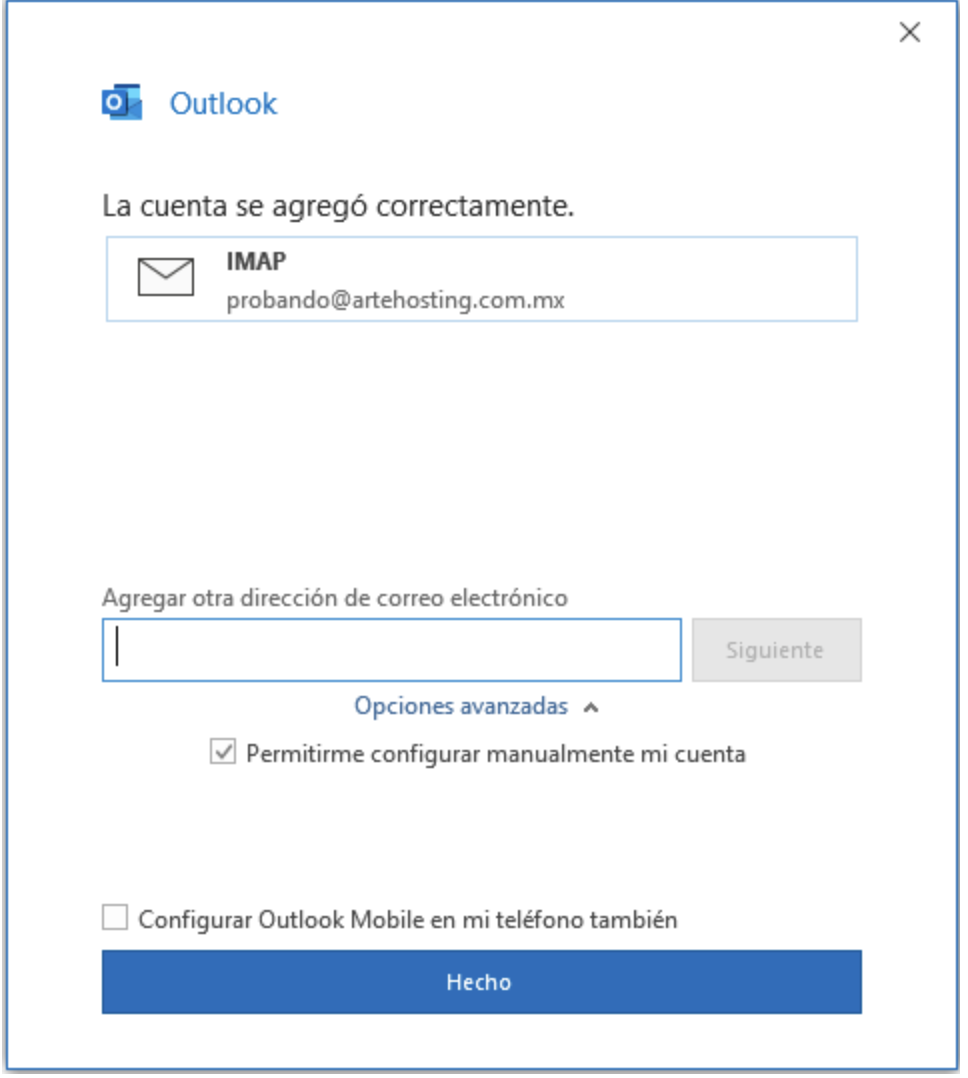
4. Confirm Configuration:
   - You'll receive confirmation that the account has been set up successfully.
   - If you encounter any connection issues, manually enter the connection parameters by consulting our article on: Email Client Configuration.

If you have any questions, we're available to assist you via our chat system.

    • Related Articles

    • Email Client Configuration

      This manual will show you all possible configurations —both automatic and manual— to connect an email account created in cPanel with email clients on computers and mobile devices. Note: Before you begin, make sure you have created the email account ...
    • Connect your email in Microsoft 365 (exchange)

      To configure email sending from your cPanel server to Microsoft 365, you need to follow several steps, including DNS setup and updating the records to ensure emails are correctly handled. Access cPanel Log in to your cPanel account. Go to the Email ...
    • How to Create an Email Account in cPanel (Step-by-Step Guide)

      This article clearly and thoroughly explains how to create a new email account in cPanel step by step. 1. Log in to cPanel Access your cPanel control panel using your access URL (for example: yourdomain.com:2083) and your credentials. 2. Go to the ...
    • Configure your Email on iPhone (iOS) and Android

      With the wide variety of email clients available for Android and iPhone, choosing the right one can be a matter of personal preference. In this article, we'll explore Webzi's recommendations for setting up your email on both platforms. iPhone (iOS) ...
    • Webzi AntiSpam Service Configuration

      If you have already activated the Webzi AntiSpam service, it is essential to review some key settings to ensure its effectiveness. If you have not yet subscribed to the AntiSpam service, click If you have already activated the Webzi AntiSpam service, ...