Protect your account: How to enable two-factor authentication on Webzi
The security of your hosting account is essential to protect your websites, domains, and sensitive data. In this tutorial, we will show you how to enable Two-Factor Authentication (2FA) on your Webzi account, adding an extra layer of protection that drastically reduces the risk of unauthorized access.
Why is Two-Factor Authentication Important?
Two-factor authentication is a critical security measure that:
- Protects against password theft: Even if someone obtains your password, they won't be able to access without the second factor
- Prevents unauthorized access: Reduces phishing and hacking attacks by 99.9%
- Complies with security standards: Many current regulations require 2FA to protect sensitive data
- Protects your digital assets: Your domains, websites, and emails are more secure
Prerequisites
Before you begin, you will need:
- Access to your Webzi account
- A smartphone with an authenticator app installed:
- Google Authenticator (iOS/Android) - Recommended
- Passwords (iOS) - Recommended
- Microsoft Authenticator (iOS/Android)
- Duo Mobile (iOS/Android)
- Authy (iOS/Android/Desktop)
Step-by-Step Guide to Enable 2FA
Step 1: Log in to Your Client Panel
Access your Webzi account by going to https://my.webzi.mx/index.php?rp=/login with your current email address and password.
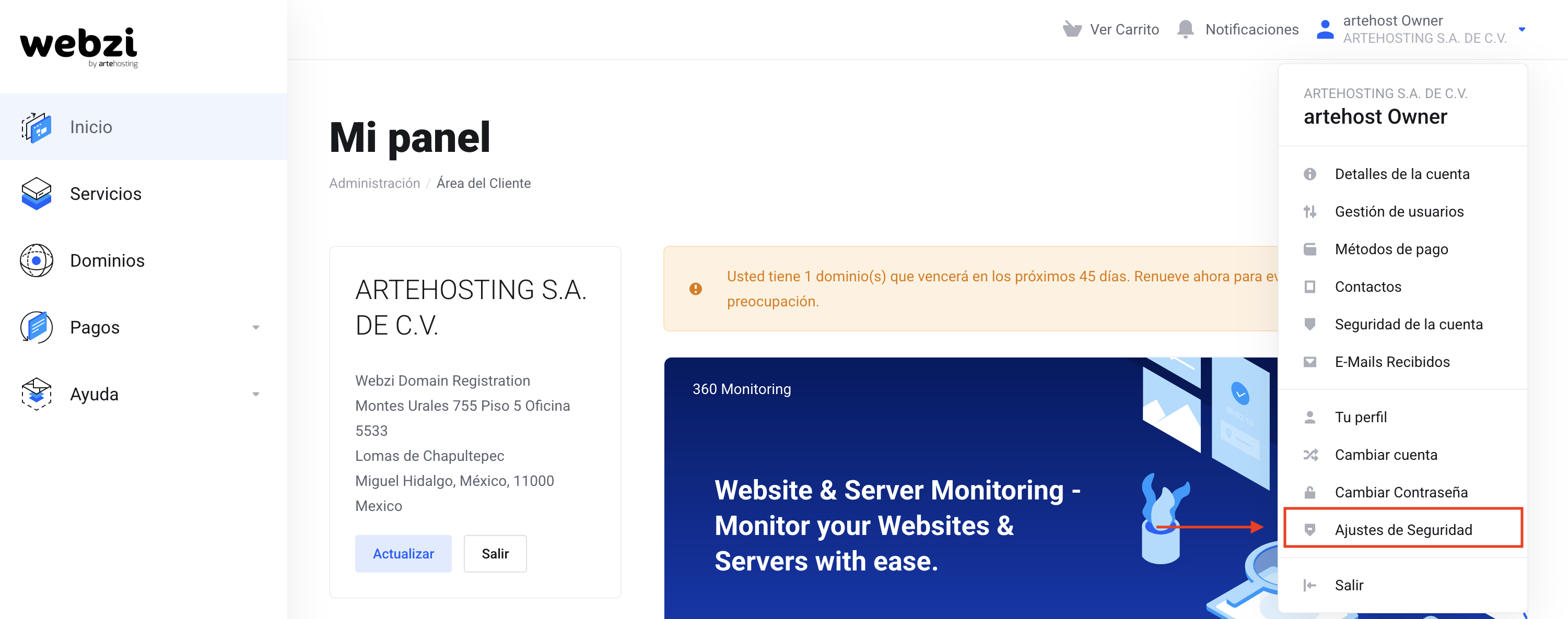
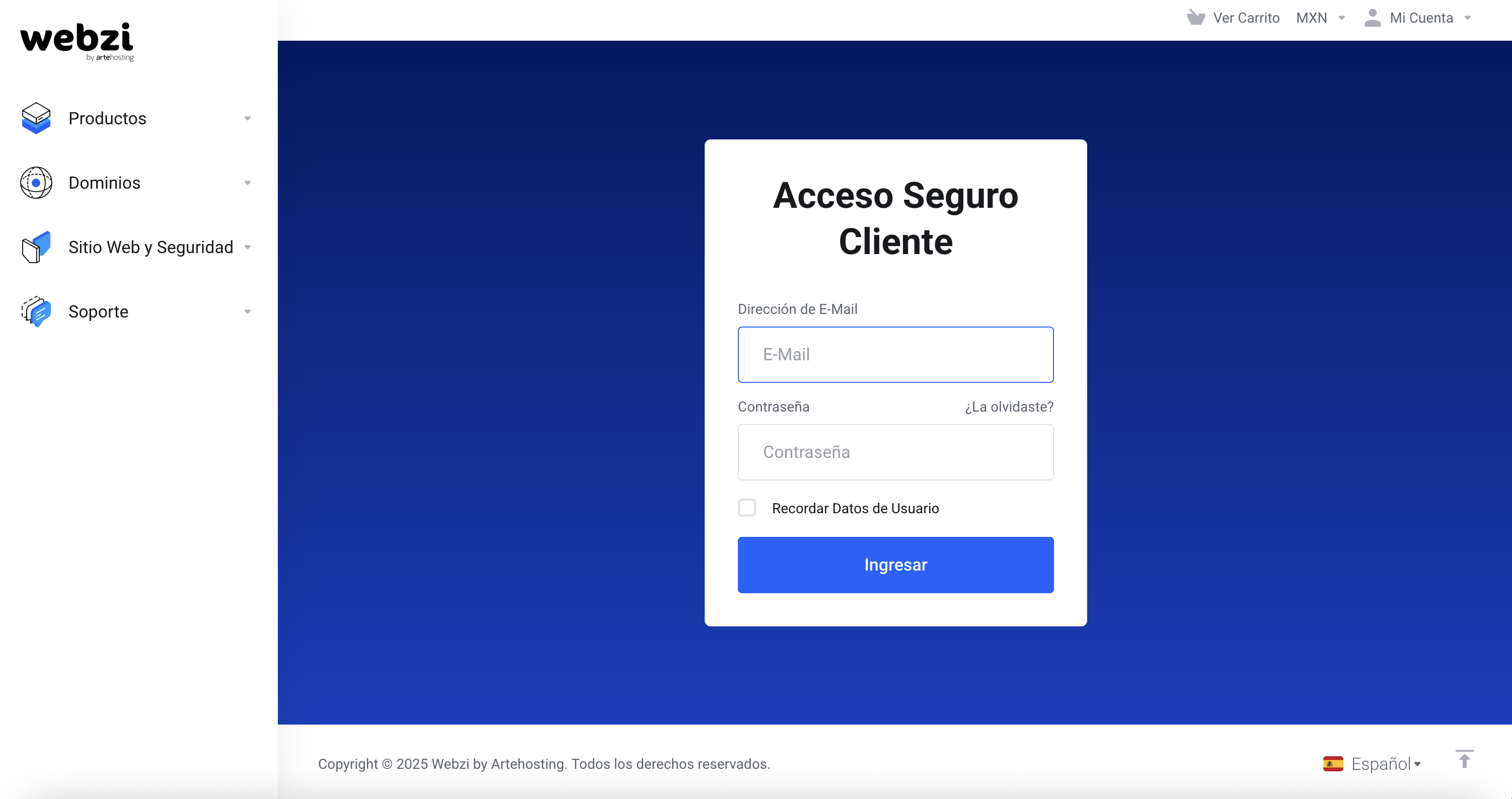 Step 2: Access Security Settings
Once inside the panel:
- Click on your name located in the upper right corner of the screen
- In the dropdown menu, select "Security Settings"
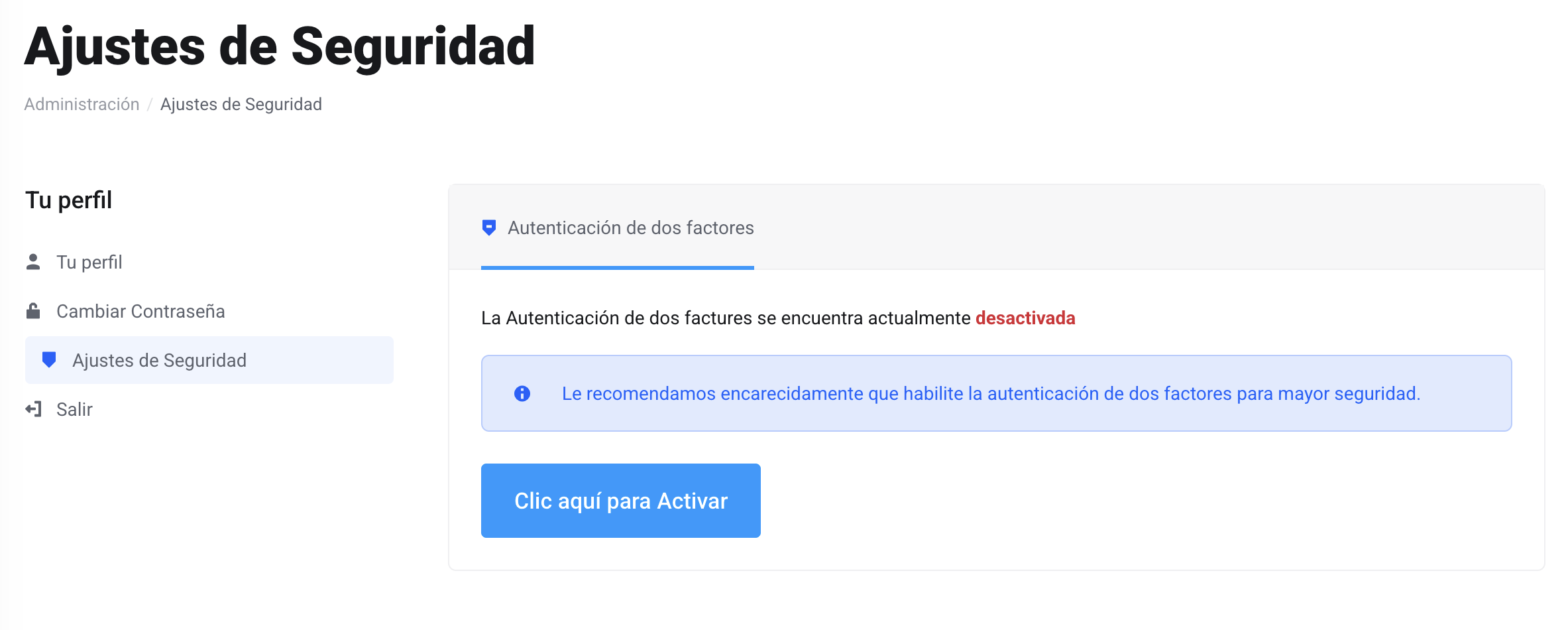
Step 3: Enable Two-Factor Authentication
In the Two-Factor Authentication section:
- You will see a message indicating that it is "disabled"
- Click on the blue button "Click here to Enable"
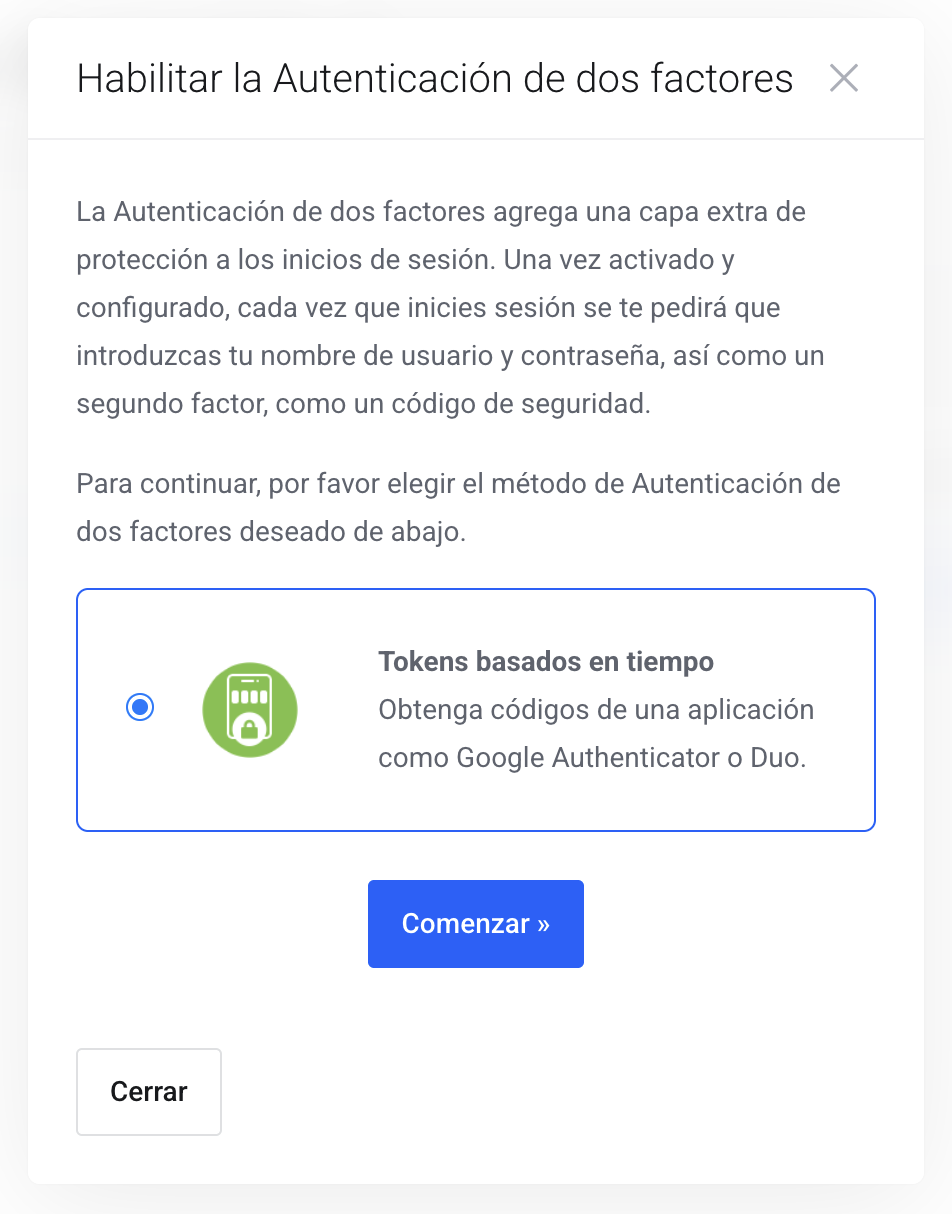
Step 4: Select the Authentication Method
- A window will appear with the "Time-based tokens" method
- Click on the "Get Started »" button to continue
Step 5: Set Up Your Authenticator App
On this screen you will see:
- A QR code to scan with your app
- A manual code (example: YUD0JD6V7ZG4GPQY) if you prefer to enter it manually
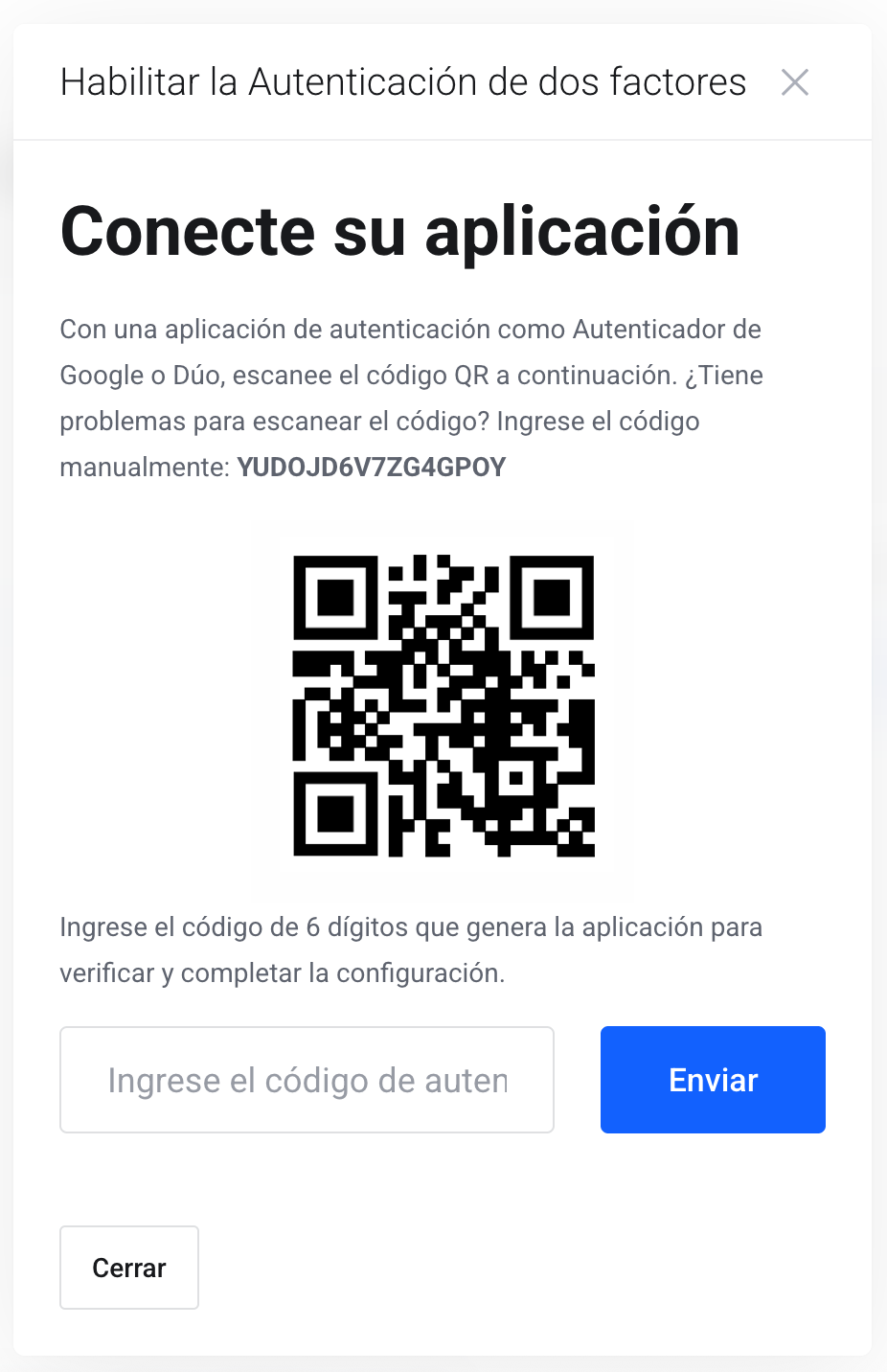
Option A: Scan the QR Code (Recommended)
- Open your authenticator app (Google Authenticator, Duo, Microsoft Authenticator, etc.)
- Tap the "+" or "Add account" button
- Select "Scan QR code"
- Point the camera at the QR code displayed on screen
Option B: Enter the Manual Code
If you cannot scan the QR:
- In your app, select "Enter code manually"
- Enter:
- Account name: Webzi or your email
- Secret key: The code shown (e.g.: YUD0JD6V7ZG4GPQY)
- Make sure to select "Time-based"
Step 6: Verify the Configuration
- Your app will generate a 6-digit code that changes every 30 seconds
- Enter this code in the "Enter the authentication code" field
- Click on the "Submit" button
Step 7: Confirmation and Completion
If the code is correct:
- You will receive a confirmation that 2FA is enabled
- IMPORTANT: Save the backup codes provided in a safe place
- Click on "Close" to finish
Additional Security Recommendations
Backup Codes
- Save the backup codes in a safe place (not on the same device)
- These codes will allow you to access your account if you lose your phone
Best Practices
- Use a unique and strong password for your Webzi account
- Regularly update your authenticator app
- Do not share your authentication codes with anyone
- Back up your authenticator app if possible
Recommended Apps and Their Advantages
- Google Authenticator: Simple, reliable, and free
- Microsoft Authenticator: Includes cloud backup
- Authy: Cross-device sync with encryption
- Duo Mobile: Intuitive interface and push notifications
Troubleshooting Common Issues
The code doesn't work
- Verify that your phone's time is automatically synchronized
- Make sure to enter the code before it expires (30 seconds)
I lost my phone
- Use one of your saved backup codes
- Contact Webzi support for assistance
The app won't scan the QR
- Check the app's camera permissions
- Use the manual code option as an alternative
What Happens After Enabling 2FA?
Once two-factor authentication is enabled:
- Each login will require your password AND the 6-digit code
- Greater peace of mind: Your account will be significantly more protected
- Controlled access: Only you with your device will be able to access
Conclusion
Enabling Two-Factor Authentication is an essential step to protect your Webzi account and all associated services. This process, which takes less than 5 minutes, can save you hours of problems and protect your business from unauthorized access.
Don't wait any longer: Your account security is our priority. Enable 2FA today and keep your digital assets protected.
Need Help?
If you encounter any issues during the setup process or have questions about your account security, our support team is available 24/7 to assist you. Contact us through the client panel or submit a support ticket.