Set Up Your Email Account in Mozilla Thunderbird

Set Up Your Email Account in Mozilla Thunderbird

In this tutorial, we will show you how to set up your Webzi email account in Mozilla Thunderbird.

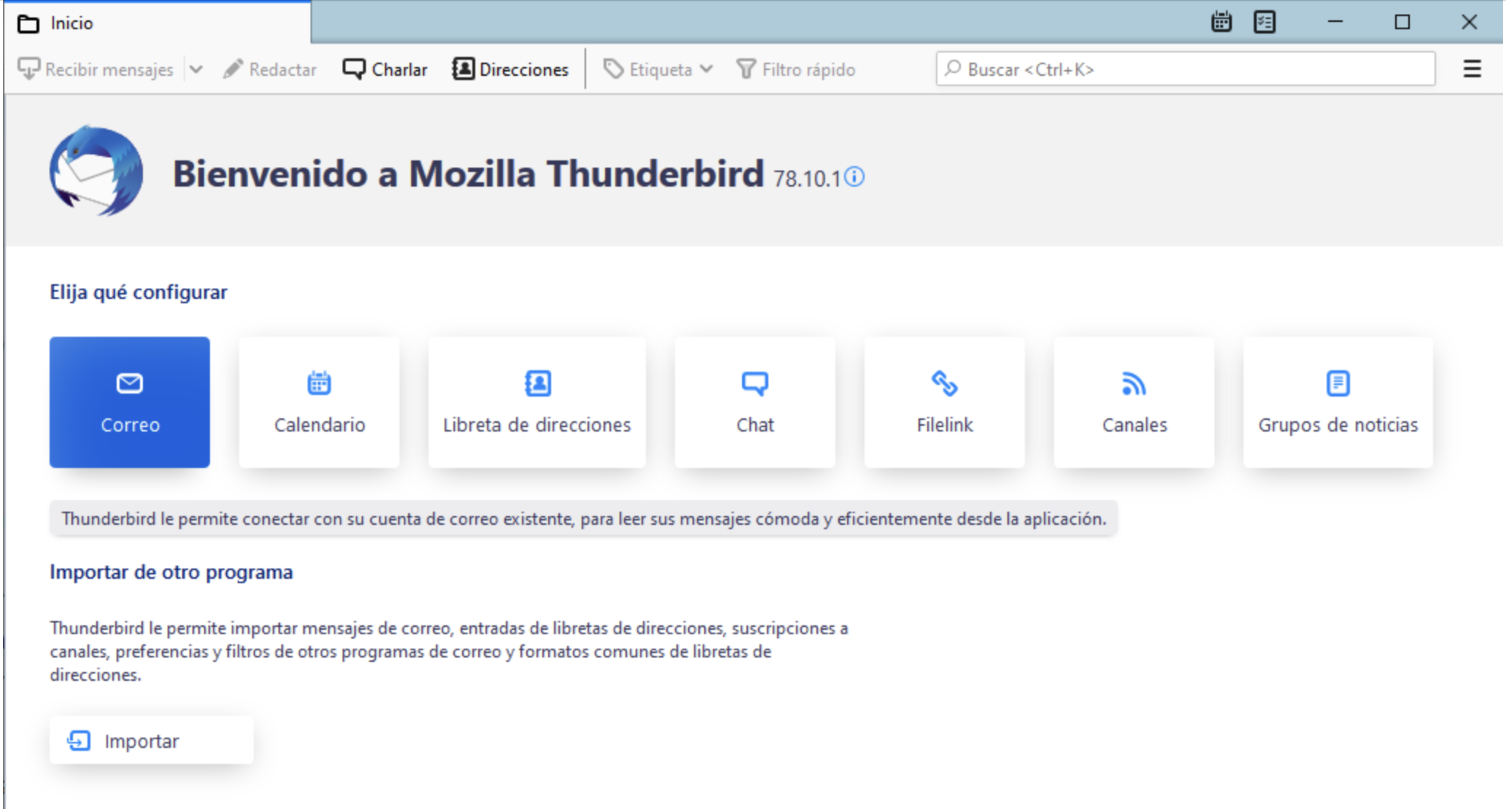
1. Open Mozilla Thunderbird:
   - Open Mozilla Thunderbird and click on "Email".
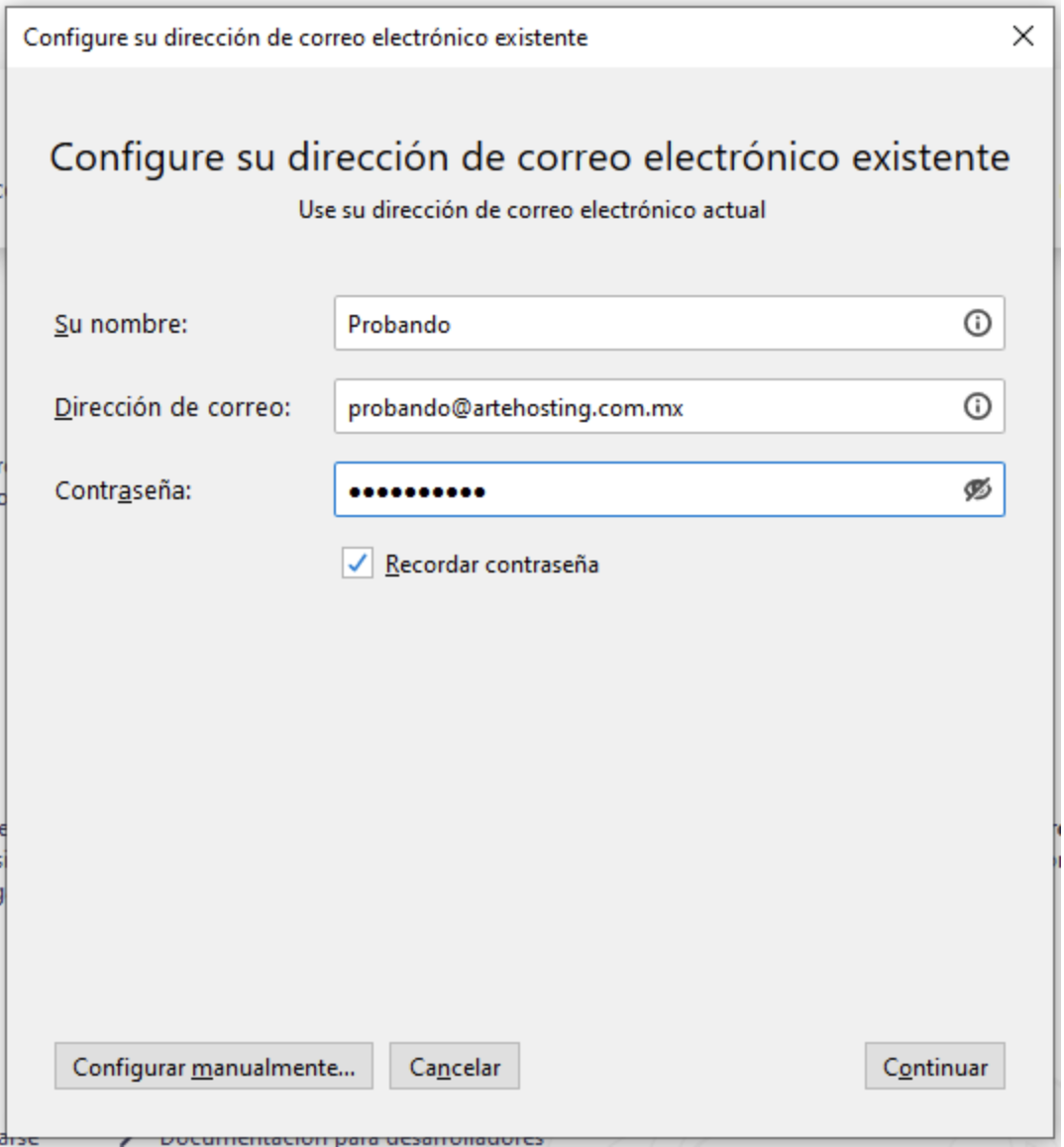
2. Enter Account Information:
   - Enter your name, your email address, and your password. Then, click "Continue".
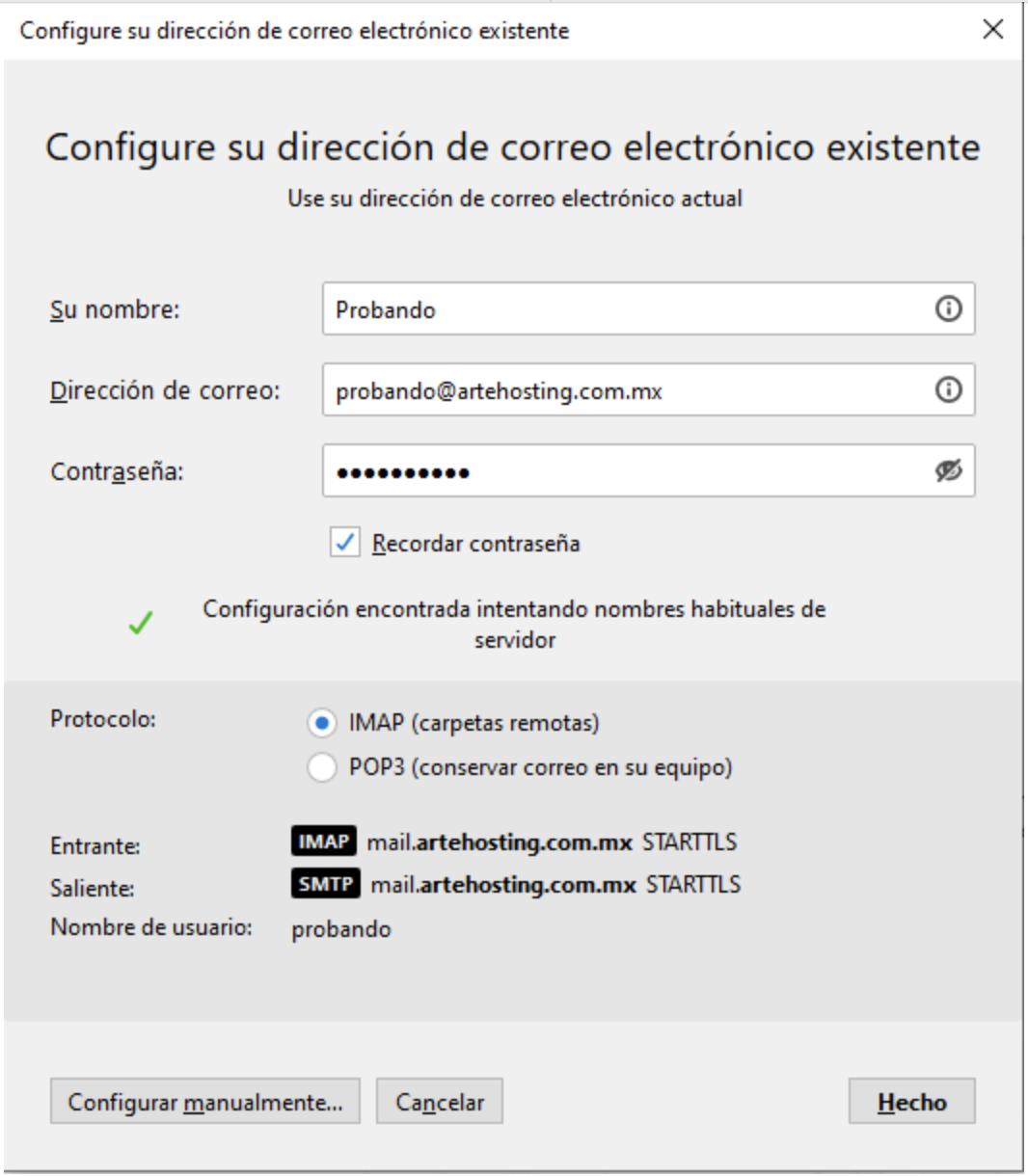
3. Select Account Type:
   - Make sure to choose "IMAP" for the account type.
   - Then, click on "Manual config".
4. Correct the Username:
   - Although Mozilla Thunderbird detects the configuration correctly, the username may be incomplete. Your username must be your full email address, so make sure to correct that parameter.
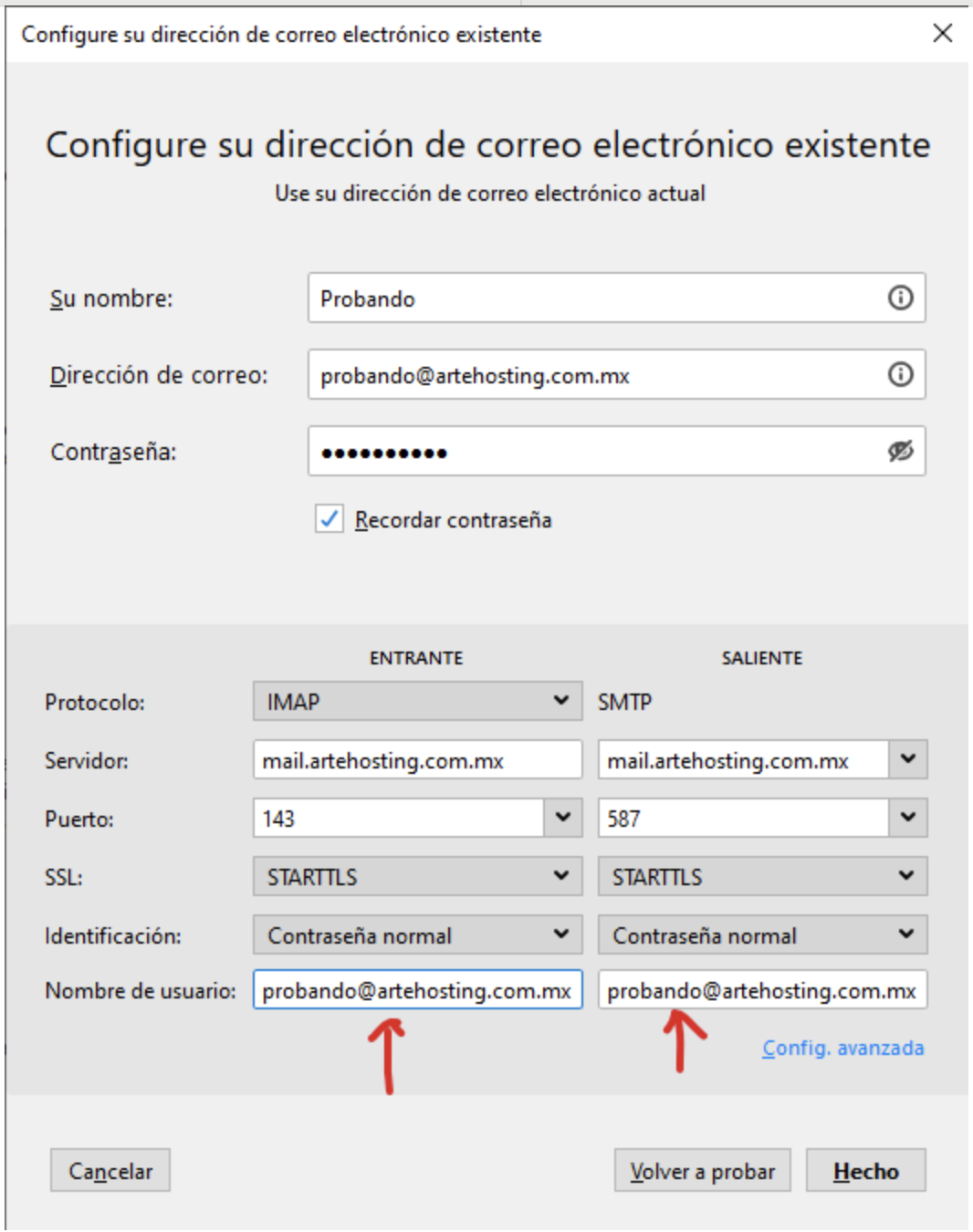
5. Finish Setup:
   - Click the "Done" button and your account will be perfectly configured.
   - If you want to manually modify the connection ports, you can use the settings from this article: Set up your email using IMAP or POP3.

Make sure to replace "probando@artehosting.com.mx" with your own email address that corresponds to your domain. For example, if your domain is "mydomain.com", your email address should be something like "youremail@mydomain.com".

This will ensure that the setup is completed correctly and that you can send and receive emails without any issues.

If you have any questions, we are available to help you through our chat system.

    • Related Articles

    • How to Back Up Email in Outlook, Thunderbird, and Mac Mail

      Having a backup of your emails is essential to protect your information against any eventuality: server migration, hardware failure, accidental deletion, or hosting provider change. In this guide, you will learn how to generate a complete backup of ...
    • How to Create Email Accounts in cPanel

      In this article, you will learn how to create an email account in cPanel so you can send and receive information with your clients. Follow the simple steps below to create your email account in cPanel on your active hosting service. Log in to your ...
    • Email Client Configuration

      This manual will show you all possible configurations —both automatic and manual— to connect an email account created in cPanel with email clients on computers and mobile devices. Note: Before you begin, make sure you have created the email account ...
    • How to Create an Email Account in cPanel (Step-by-Step Guide)

      This article clearly and thoroughly explains how to create a new email account in cPanel step by step. 1. Log in to cPanel Access your cPanel control panel using your access URL (for example: yourdomain.com:2083) and your credentials. 2. Go to the ...
    • Connect your email in Microsoft 365 (exchange)

      To configure email sending from your cPanel server to Microsoft 365, you need to follow several steps, including DNS setup and updating the records to ensure emails are correctly handled. Access cPanel Log in to your cPanel account. Go to the Email ...