Set Up Your Email on iPhone (Mail)
In this tutorial, we will show you how to set up your Webzi email account on your iPhone using the native Mail app.
Add a New Account
1. Open "Settings" on your iPhone.
2. Go to "Accounts" and select "Add Account".
3. On the next screen, select "Other".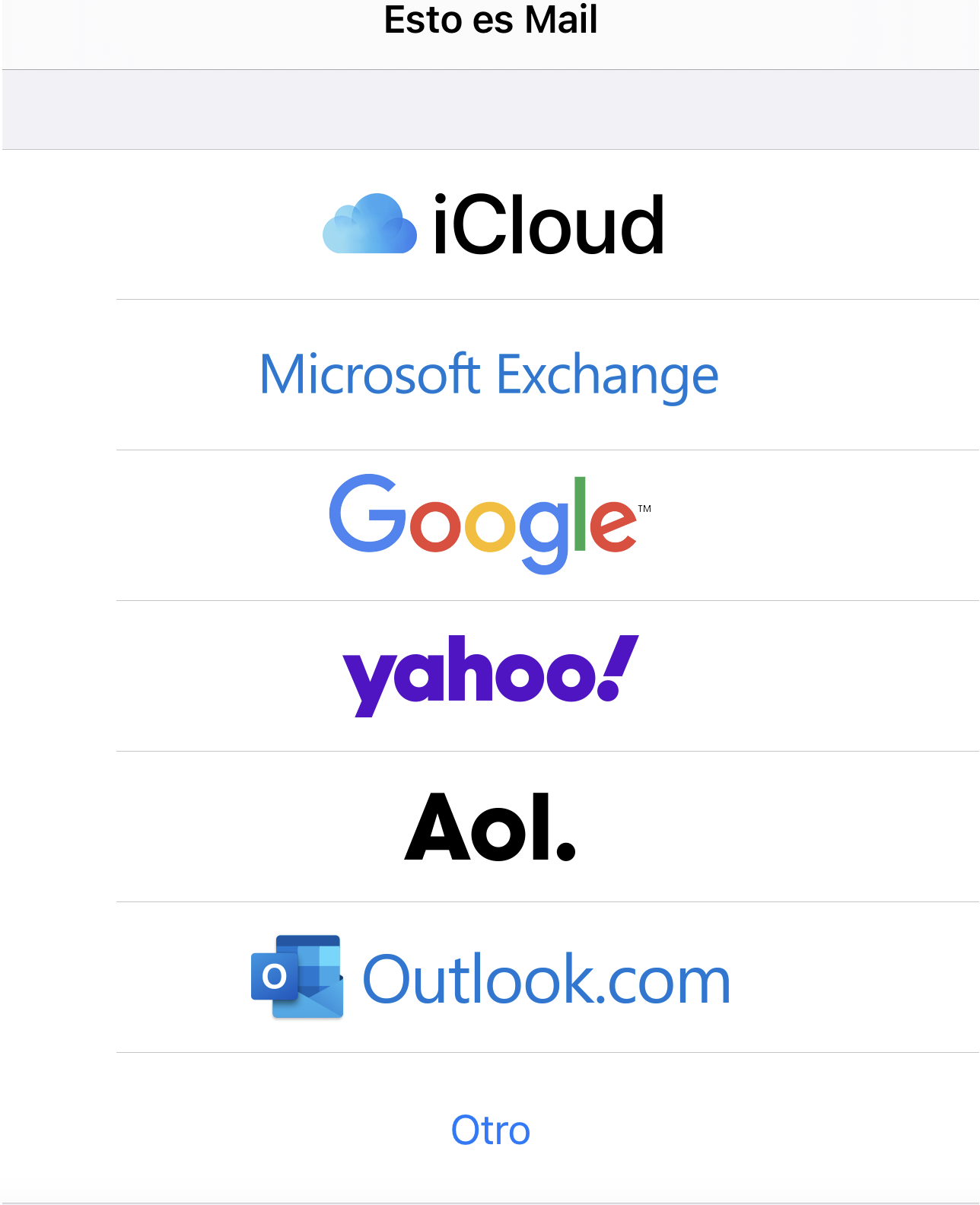
Enter Account Information
1. Fill in the fields with your name, email address, password, and a description for the account.
2. Remember that passwords are case-sensitive, so make sure to enter it correctly. Then, click "Next".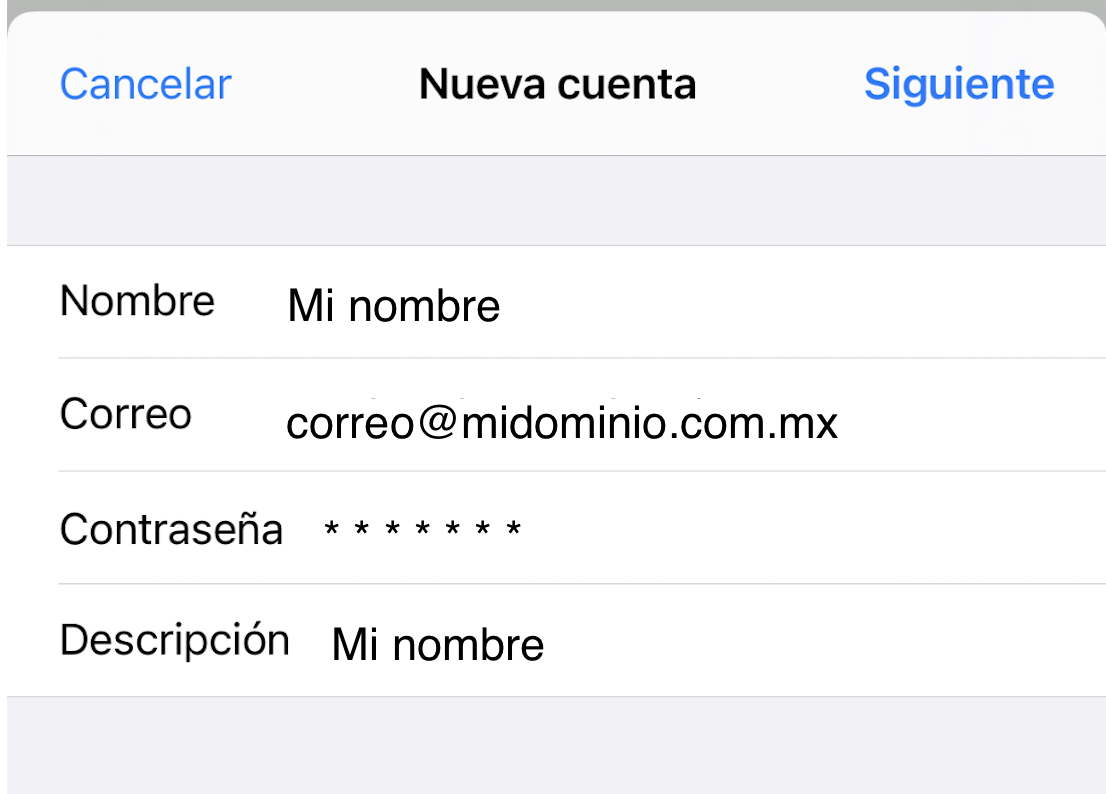
Incoming and Outgoing Server Configuration
1. Enter your domain name (without "www") for both the incoming and outgoing servers.
2. Enter your full email address as the username and the same password for both servers.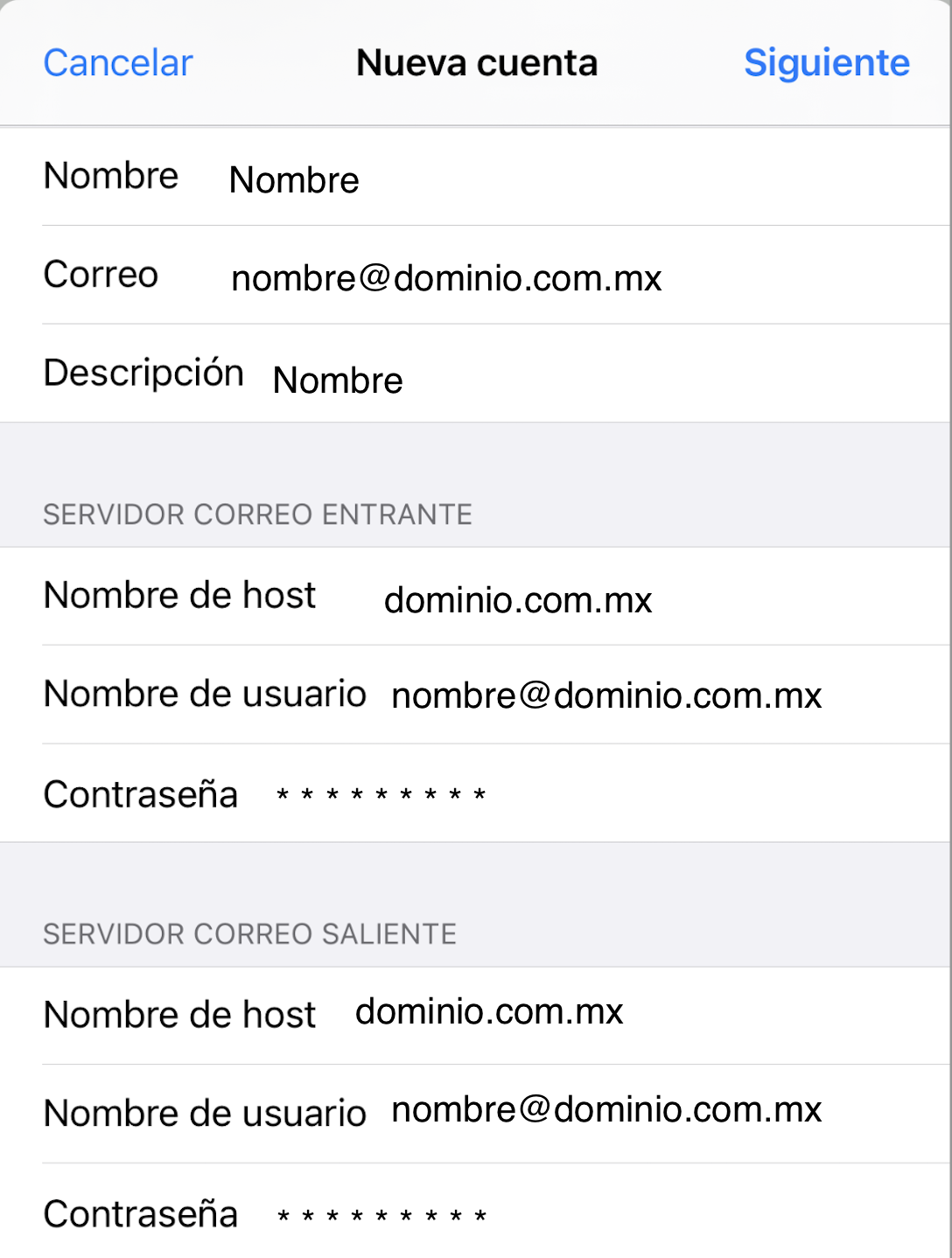
Finish the Setup
1. On the final screen, make sure the "Mail" option is selected and click "Save".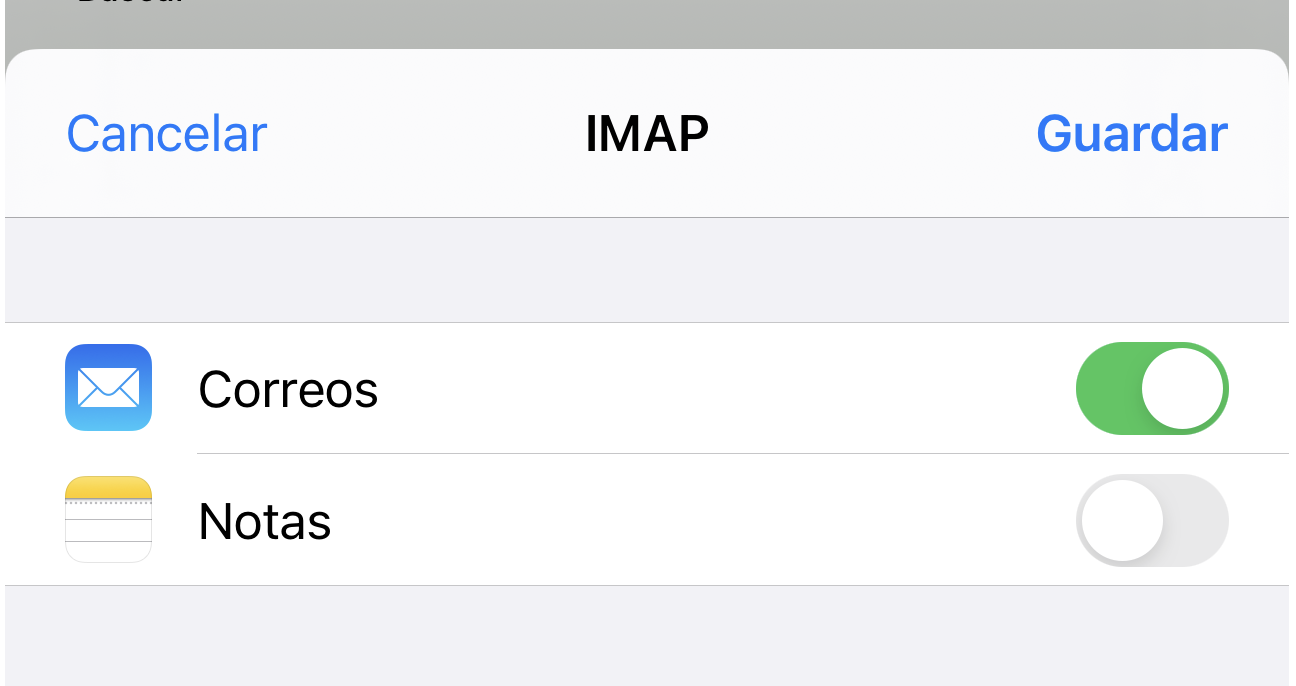
2. If you encounter connection issues, you will need to manually enter the connection parameters. You can find them in our article: Set up your email using IMAP or POP3
If you have any questions, we are available to help you through our chat system.