Configure your Email on iPhone (iOS) and Android
With the wide variety of email clients available for Android and iPhone, choosing the right one can be a matter of personal preference.
In this article, we'll explore Webzi's recommendations for setting up your email on both platforms.
iPhone (iOS)
The default client on iPhone is Apple's MAIL, known for its minimalist design. To learn how to set up your email in MAIL, check out our article: Configure your email account on iPhone (Mail).
Additionally, we recommend two excellent alternatives: Spark and Outlook.
Setting Up Spark for iPhone
1. Open Spark and select the three lines at the top to access "Settings".
2. Choose "Mail Accounts" and select "Add Account".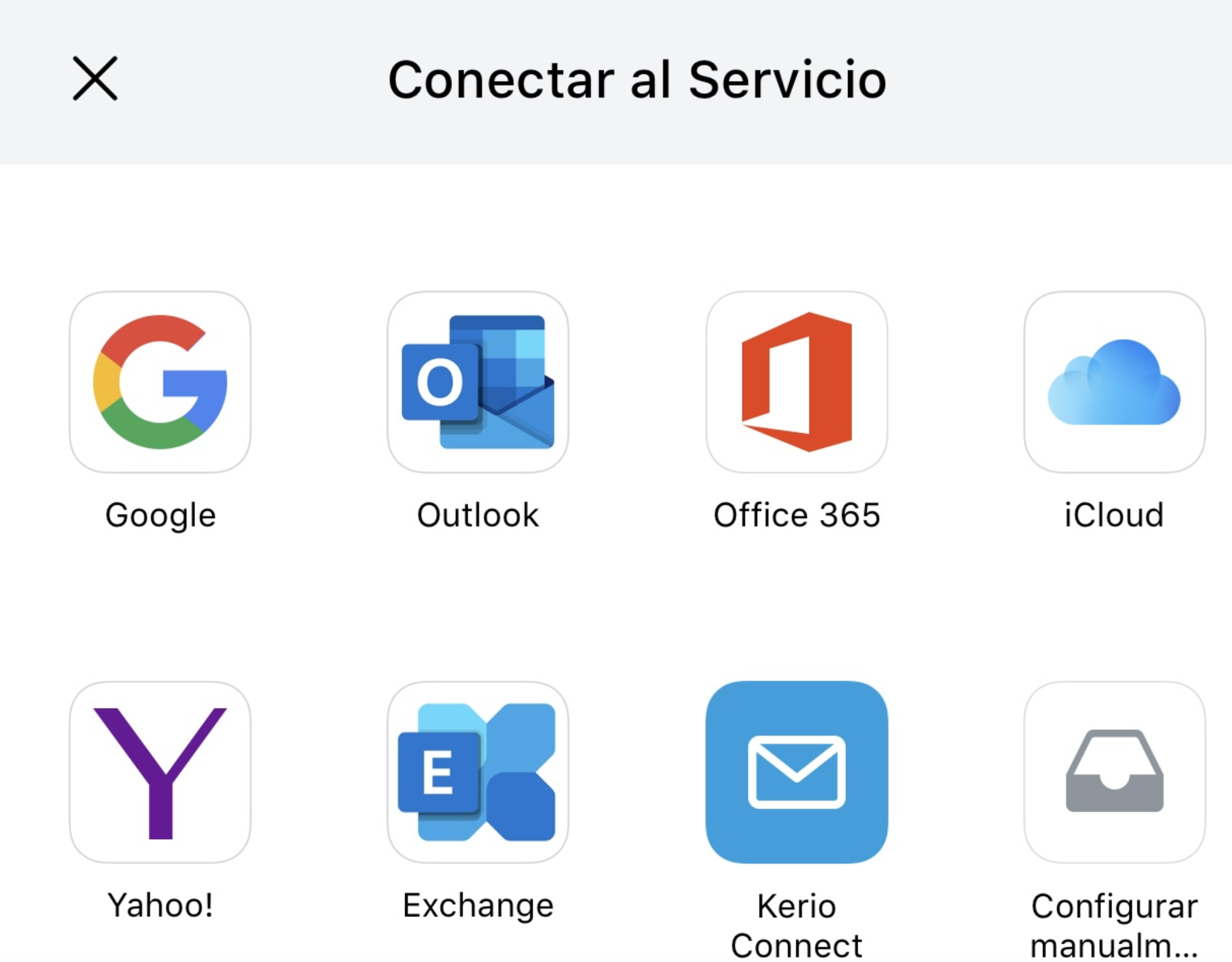
3. Opt for "Set Up Manually" and enter your account details.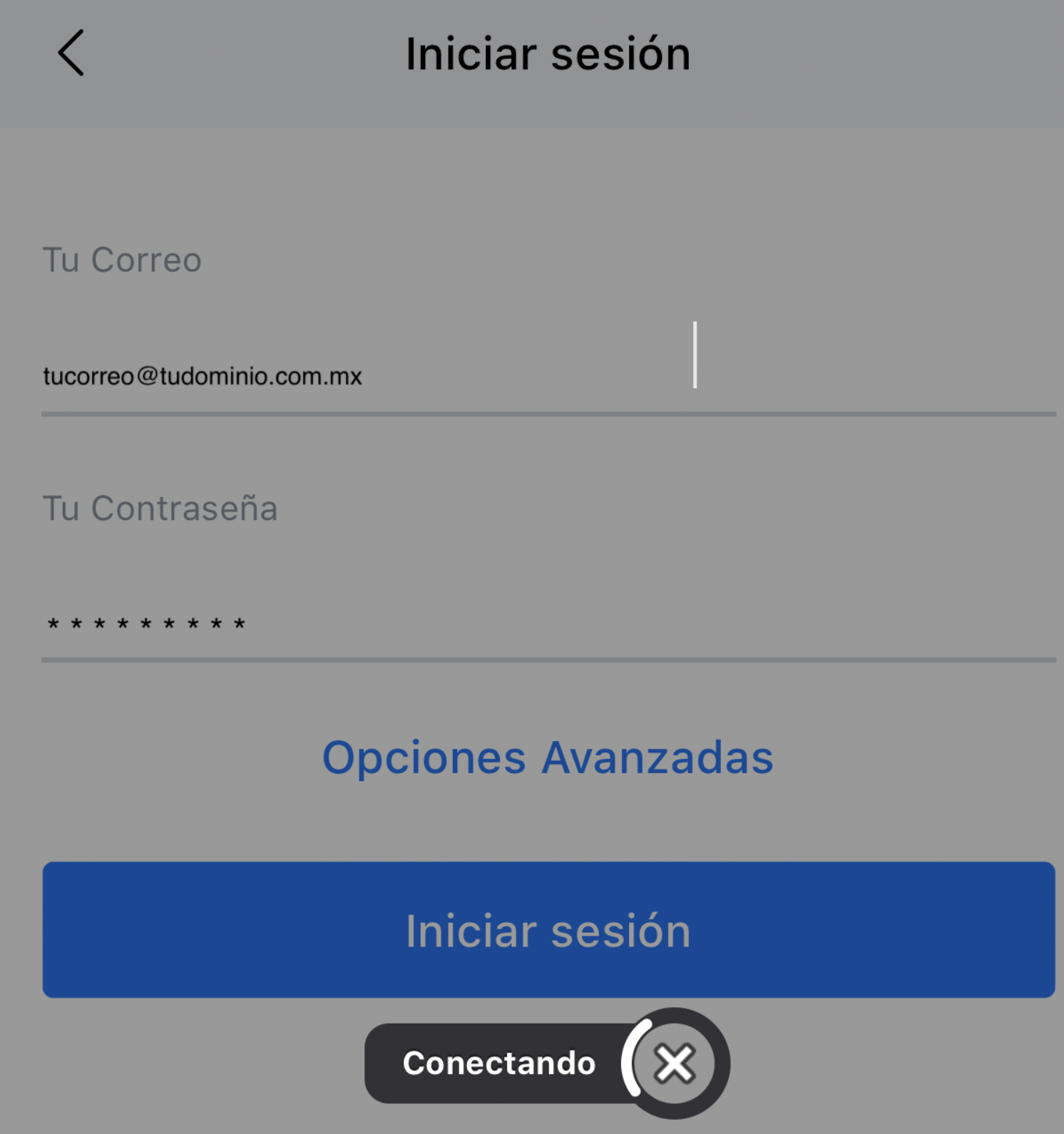
4. Log in to allow Spark to automatically detect the necessary settings.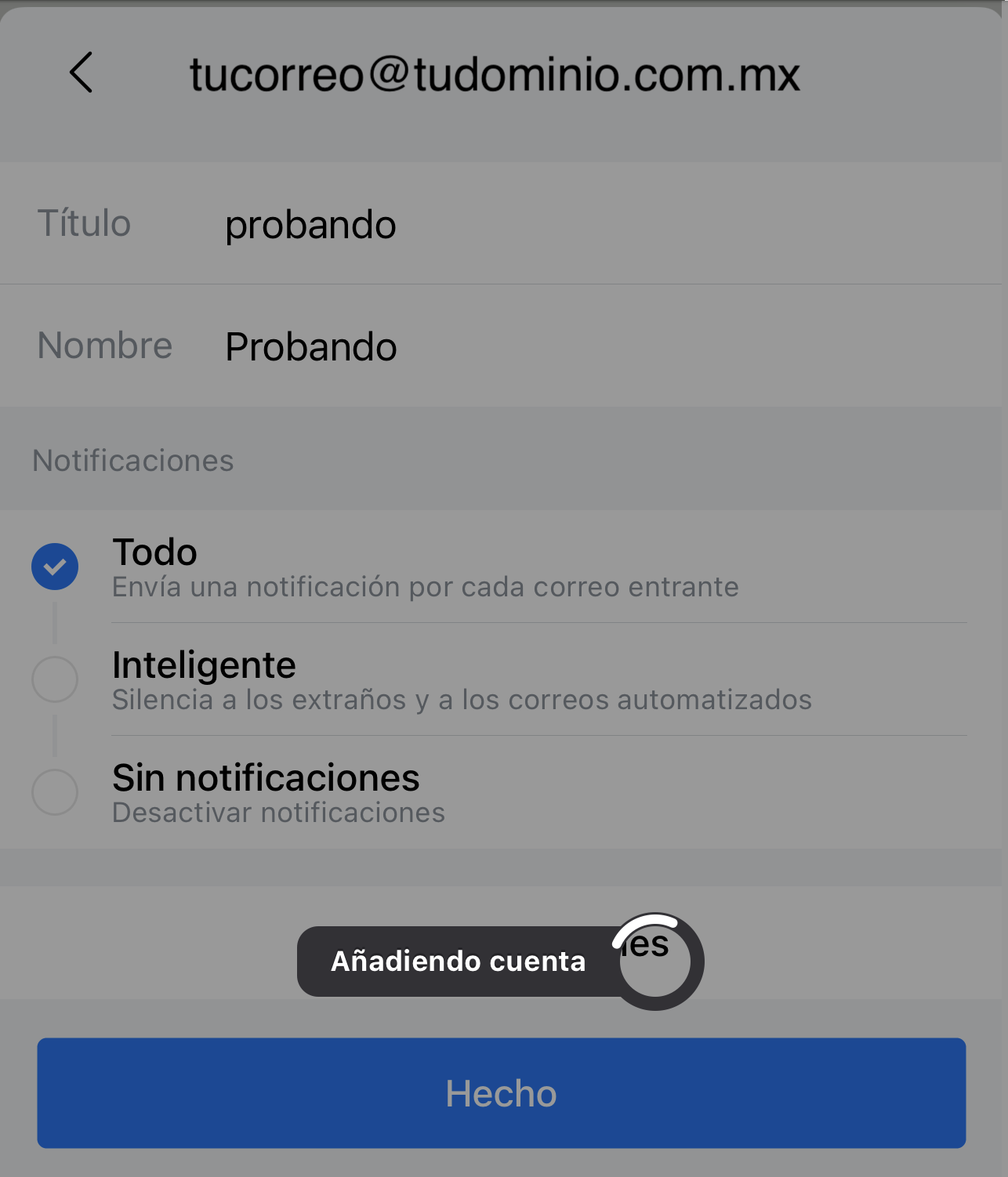
Alternatively, you can opt for manual configuration with our detailed article at
5. Finish by entering your name and selecting "Done".
Setting Up Outlook for iPhone
1. Open Outlook, click on the "home" icon, and then the settings gear.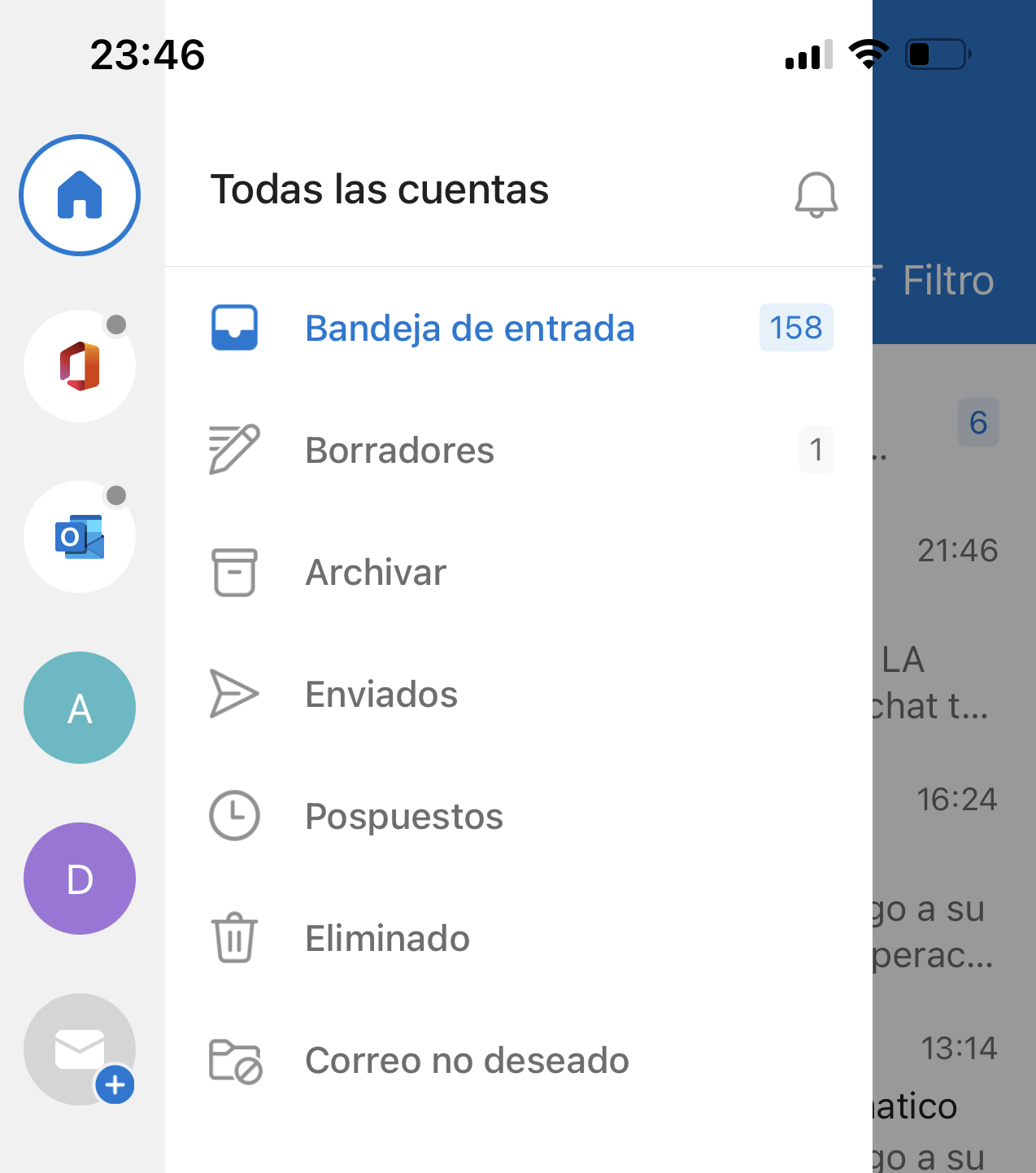
2. Select "Add Account" > "Email Account" and enter your email address.
3. Outlook will automatically recognize it as an IMAP account, filling in most fields. Be sure to enter your password for both incoming and outgoing servers.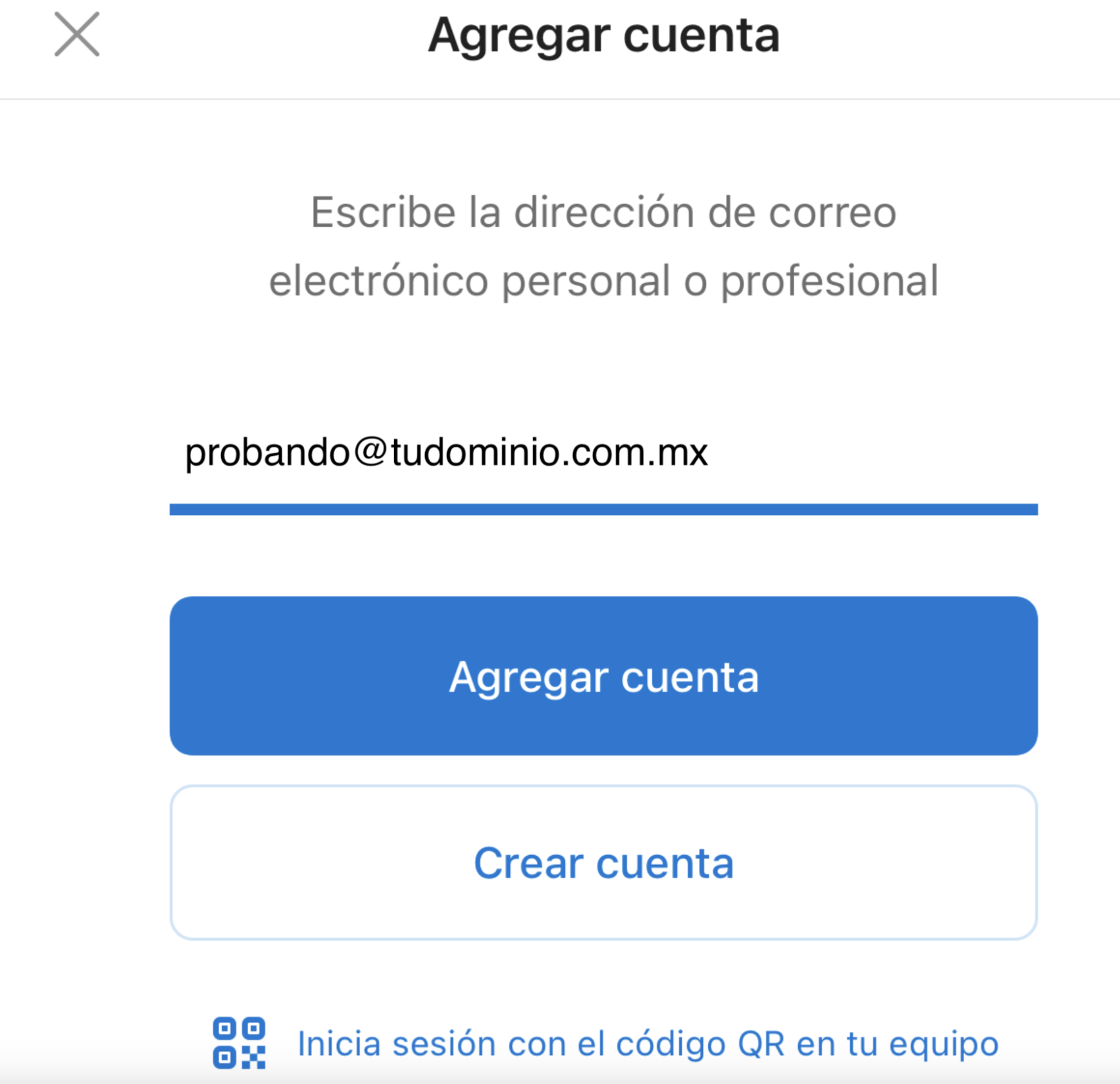
Android
Since each Android brand has its own interface and default email clients, ensuring universal configuration is complicated. However, if you're willing to set up your email manually, we invite you to check out our article on [POP3 and IMAP configuration ports](#).
We recommend using Spark or Outlook, which are some of the best email clients on the market.
Setting Up Spark for Android
1. Open Spark, access the top three lines to go to "Settings".
2. Select "Mail Accounts" and then "Add Account".
3. Choose "Set Up Manually" and enter your account details.
4. Log in for Spark to automatically detect the settings. If you prefer, opt for manual configuration following our detailed guides.
5. Complete the process by entering your name and selecting "Done".
Setting Up Outlook for Android
1. Open Outlook, tap the "home" icon, and then the settings gear.
2. Click on "Add Account" > "Email Account" and enter your email address.
3. Outlook will automatically identify it as an IMAP account and fill in most of the details. Don't forget to enter your password for the incoming and outgoing servers.