How to Create Email Filters in cPanel – Complete Guide
Email filters in cPanel allow you to automatically manage incoming messages based on criteria such as sender, subject, or content. With them, you can organize emails into folders, block unwanted senders, forward messages to another account, or delete emails you don't need — all without manual intervention.
Types of filters in cPanel
cPanel offers two levels of email filters. It's important to understand the difference in order to choose the right one:
| Type | Where is it? | Who does it apply to? |
|---|---|---|
| Global filters | Email → Global Email Filters | All email accounts on the domain |
| Per-account filters | Email → Email Filters | Only a specific email account |
ℹ️ Which one to choose? Global filters are ideal for rules you want to apply across all accounts (for example, blocking a spam sender for the entire domain). Per-account filters are better for personalized rules for each mailbox.
How to create a filter step by step
The process is the same for both filter types. In this example, we'll use global filters:
Step 1: Access the filters
- Log in to cPanel.
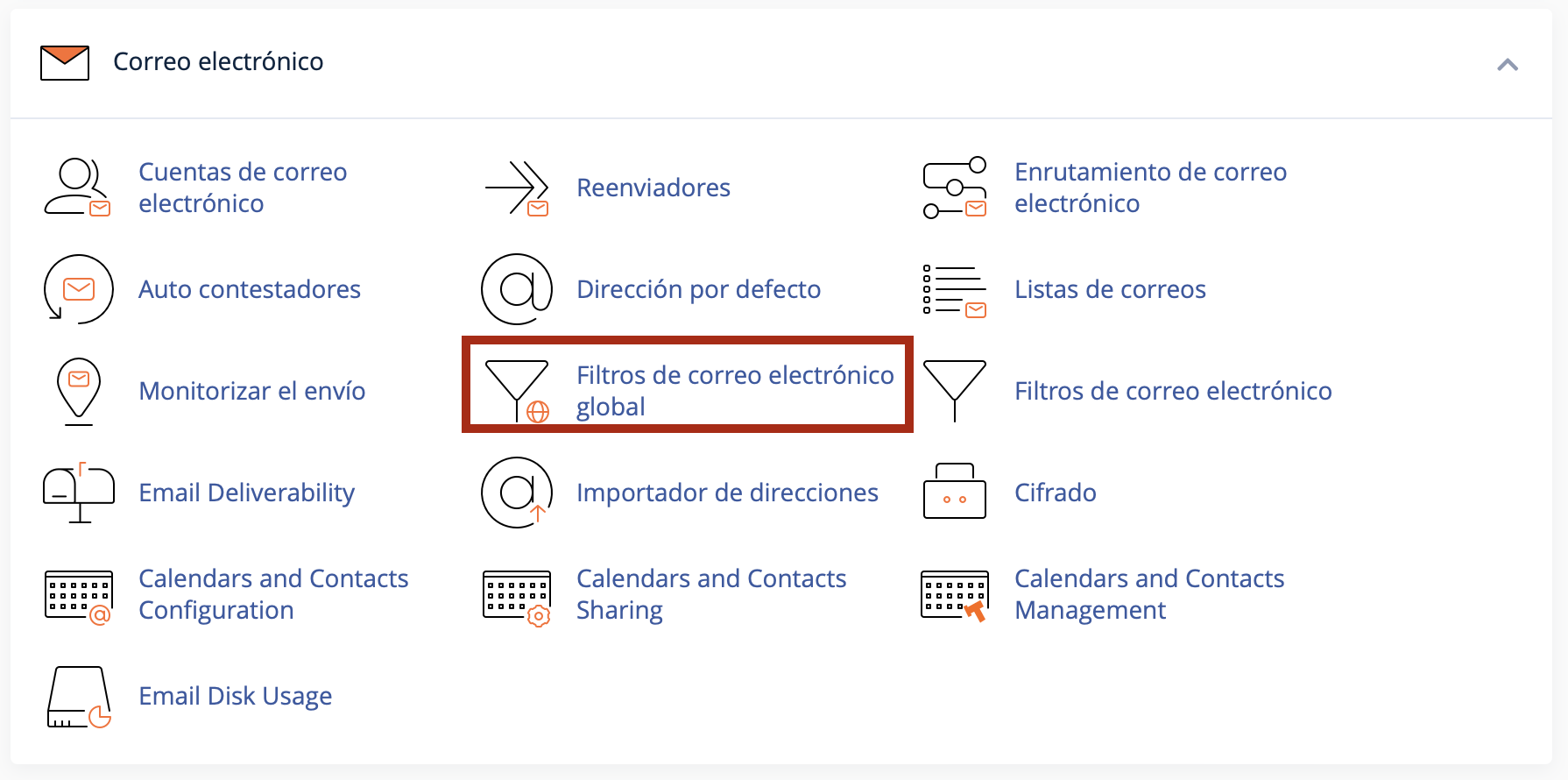
- In the Email section, click on Global Email Filters (or "Email Filters" if you want a per-account filter).
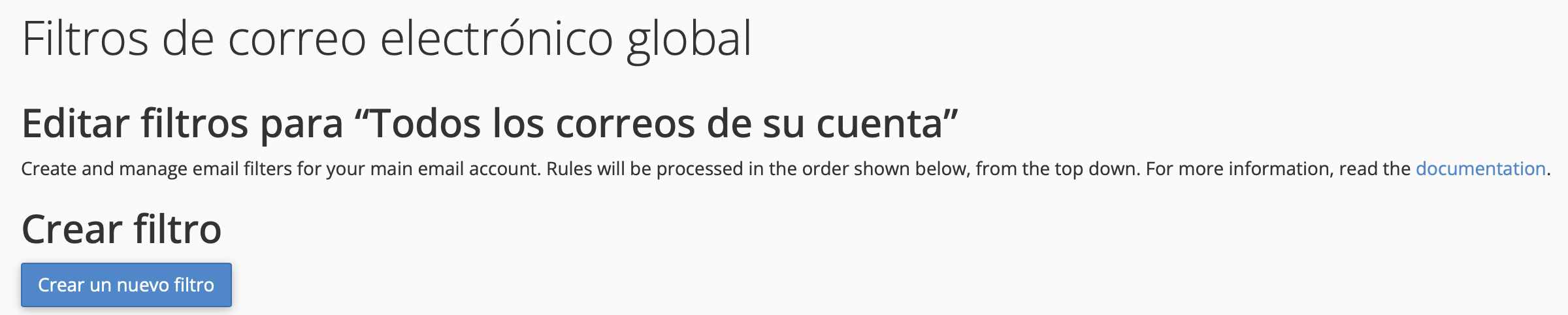
- Click Create a New Filter.
Step 2: Name the filter
In the Filter Name field, type a descriptive name that allows you to easily identify the rule. This name is for reference only and does not affect how the filter works.
Good name examples: Block spam promotions, Invoices to folder, Forward orders to sales.
Step 3: Define the conditions (criteria)
Each filter needs at least one condition that determines when it triggers. Conditions are made up of three parts:
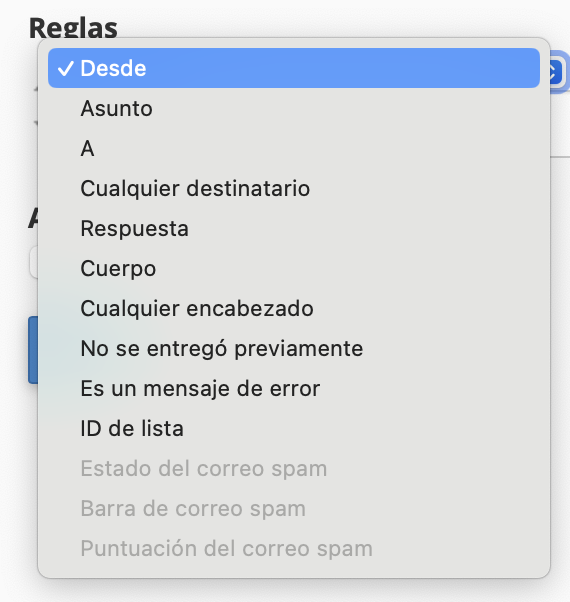
1️⃣ Field to evaluate — Which part of the email is analyzed:
| Field | What does it evaluate? | Common use |
|---|---|---|
| From | The sender's address | ⭐ Very common |
| Subject | The message subject line | ⭐ Very common |
| To | The recipient's address | Moderate |
| Body | The message content | Moderate |
| Any Header | All email headers | Advanced |
| Spam Score | The SpamAssassin score of the message | Advanced |
2️⃣ Comparison operator — How the value is compared:
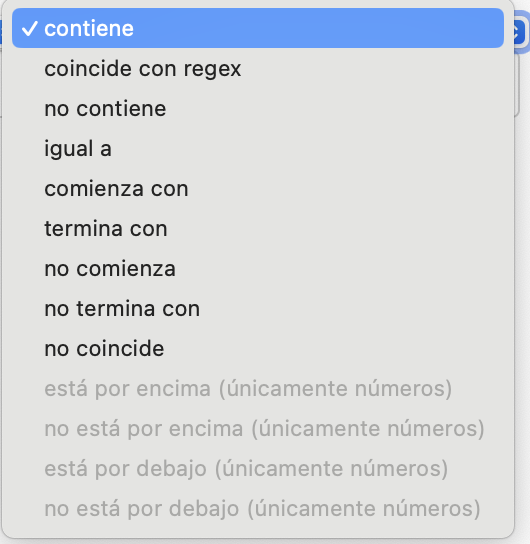
| Operator | Meaning | Example |
|---|---|---|
| contains | The field includes the text anywhere | Subject contains "invoice" → matches "Your January invoice" |
| equals | The field matches the text exactly | From equals "spam@example.com" |
| begins with | The field starts with the text | Subject begins with "[ALERT]" |
| ends with | The field ends with the text | From ends with "@spamdomain.com" |
| does not contain | The field does NOT include the text | Subject does not contain "important" |
| matches regex | Matches a regular expression | Advanced — for complex patterns |
3️⃣ Value — The text or address you want to search for (for example: invoice, spam@example.com, newsletter).
ℹ️ Multiple conditions: You can add more than one condition by clicking the + button. When using multiple conditions, choose whether the filter triggers when all (AND) or any (OR) of them are met.
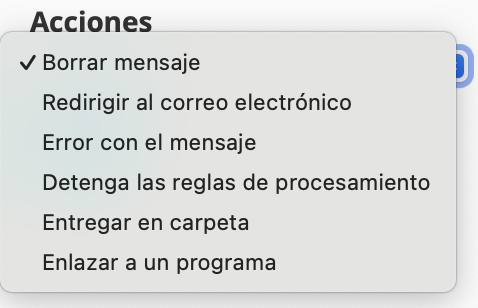
Step 4: Define the action
Once the conditions are defined, select what to do with the matching emails:
| Action | What does it do? |
|---|---|
| Discard message | Deletes the email without delivering it (the sender is not notified) |
| Redirect to email | Forwards the email to another address (no local copy is kept) |
| Deliver to folder | Moves the email to a specific IMAP folder |
| Fail with message | Rejects the email and sends an error message back to the sender |
| Stop processing rules | Stops evaluating subsequent filters for this message |
| Pipe to a program | Sends the email to a script (advanced use) |
Step 5: Save the filter
Click Create to save the filter. The filter will be applied immediately to all new incoming emails.
Practical examples
Here are some filters you can replicate directly based on your needs:
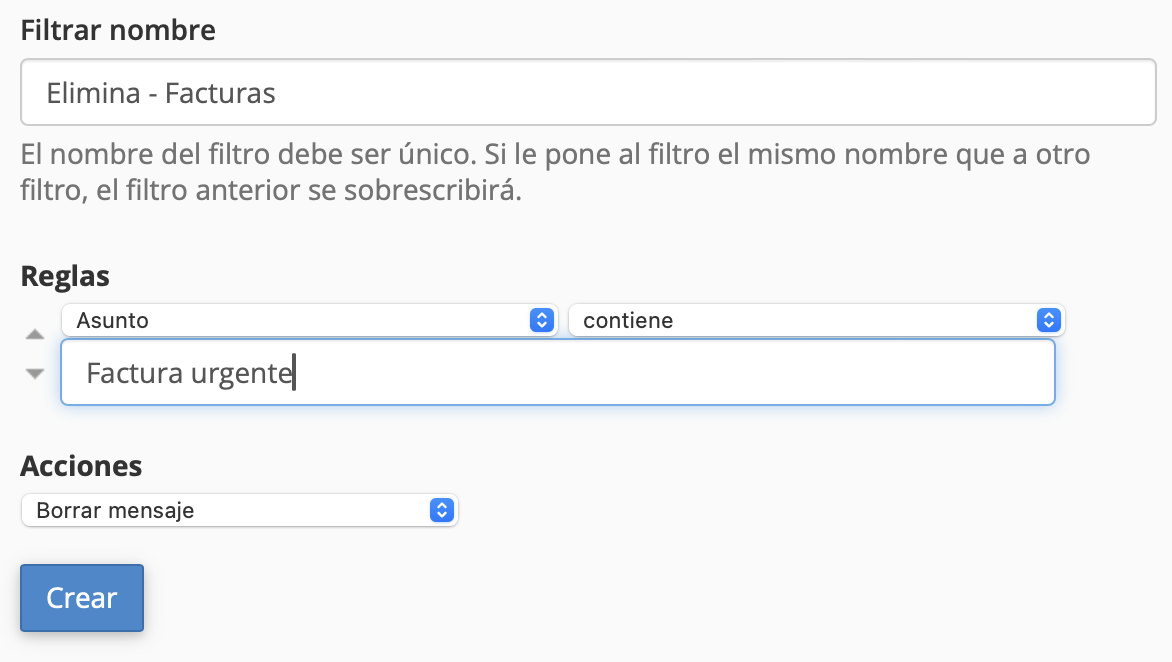
📌 Example 1: Delete emails from a specific sender
Ideal for blocking persistent spam from a known address.
| Filter name: | Block spam promotions |
| Condition: | From → equals → offers@spammer.com |
| Action: | Discard message |
📌 Example 2: Move invoices to a dedicated folder
Keeps your inbox clean by automatically organizing invoices.
| Filter name: | Invoices to folder |
| Condition: | Subject → contains → invoice |
| Action: | Deliver to folder → Invoices |
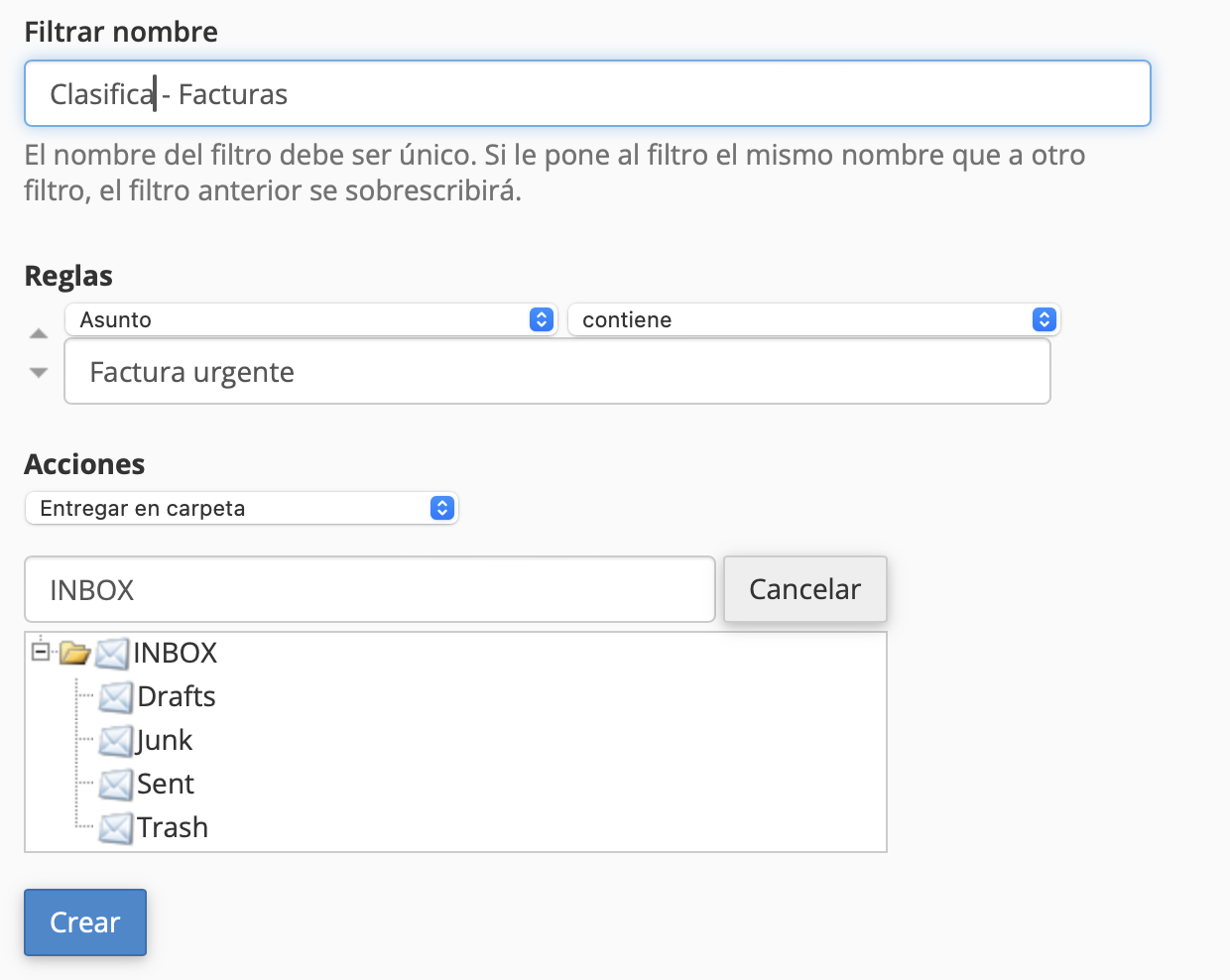
ℹ️ Note: The folder must exist beforehand. You can create it from Webmail (Roundcube or Horde) before setting up the filter.
📌 Example 3: Block an entire spam domain
When spam comes from multiple addresses at the same domain.
| Filter name: | Block spam domain |
| Condition: | From → ends with → @spamdomain.com |
| Action: | Discard message |
📌 Example 4: Forward orders to the sales department
Useful when a contact form sends orders to a general account and you need them to also reach the sales team.
| Filter name: | Forward orders to sales |
| Condition: | Subject → contains → new order |
| Action: | Redirect to email → sales@yourdomain.com |
⚠️ Important: The "Redirect" action does not keep a copy in the original account. If you need to keep a copy and also forward, use a Forwarder in cPanel instead of a filter.
📌 Example 5: Delete emails with high spam score (global filter)
Automatically deletes emails that SpamAssassin clearly considers spam for all accounts on the domain.
| Filter name: | Delete high spam |
| Condition: | Spam Score → is above → 8 |
| Action: | Discard message |
Recommendations and common mistakes
✅ Best practices:
- Be specific with conditions. Use word combinations or full phrases instead of generic terms. For example,
Tax invoiceis better than justinvoice. - Use multiple conditions. Combine criteria for greater precision: for example, Subject contains "invoice" AND From ends with "@vendor.com".
- Test before deleting. When creating a new filter, first use the "Deliver to folder" action instead of "Discard". After a few days, check the folder to confirm it only captures the intended emails, then switch to "Discard" if everything looks correct.
- Review periodically. Check your filters from time to time to make sure they're still useful and aren't incorrectly filtering important emails.
- Name your filters descriptively. A clear name will save you time when you need to modify or delete a filter in the future.
❌ Common mistakes:
- Using overly generic words. Filtering by "hello", "meeting", or "info" can catch legitimate important emails (false positives).
- Creating duplicate or conflicting filters. If you have a filter that moves emails to a folder and another that deletes them, the result will depend on the execution order.
- Forgetting that "Redirect" doesn't keep a copy. If you redirect an email, it is sent to the destination and is not kept in the original account.
- Creating filters and forgetting about them. A filter that made sense months ago may be deleting important emails today.
⚠️ Remember: Filters only apply to new emails that arrive after the rule is created. They do not affect messages already in your inbox.
Need help?
If you need help setting up a specific filter or aren't sure which rule to apply, our support team can guide you:
- Open a support ticket from your My Webzi panel or by writing to soporte@webzi.mx
- Live chat available at webzi.mx
- Browse our knowledge base: https://help.webzi.mx