What Is WP Accelerate and How to Configure It?
WP Accelerate is a plugin designed for WordPress that includes a set of optimizations designed to improve the performance of WordPress sites hosted in environments with cPanel and CloudLinux. It integrates various techniques and tools that speed up page loading, optimize resources such as images and CSS/JavaScript files, and reduce unnecessary server resource usage.
This plugin is ideal for both small blogs and large websites that require fast response times and efficient use of server resources.
What is WP Accelerate used for?
- Improves site performance and loading speed: Through file optimization, reducing server requests, and deferred loading of certain resources.
- Static resource optimization: Such as CSS, JavaScript, and images, which minimizes the loading time of critical page elements.
- Cache usage optimization: Ensuring that users see the fastest possible version of your site without needing to reload unnecessary elements.
Advantages of Using WP Accelerate
- Better performance: Lower loading times, which translates into a better user experience.
- Better search engine ranking: Google values site speed when ranking results in its search engine.
- Reduced server load: Helps manage server resources more efficiently, which is vital for high-traffic sites.
- Higher user retention: Users tend to abandon sites that take too long to load, so a faster site retains more visitors.
Complete Configuration
1. Static File Optimization
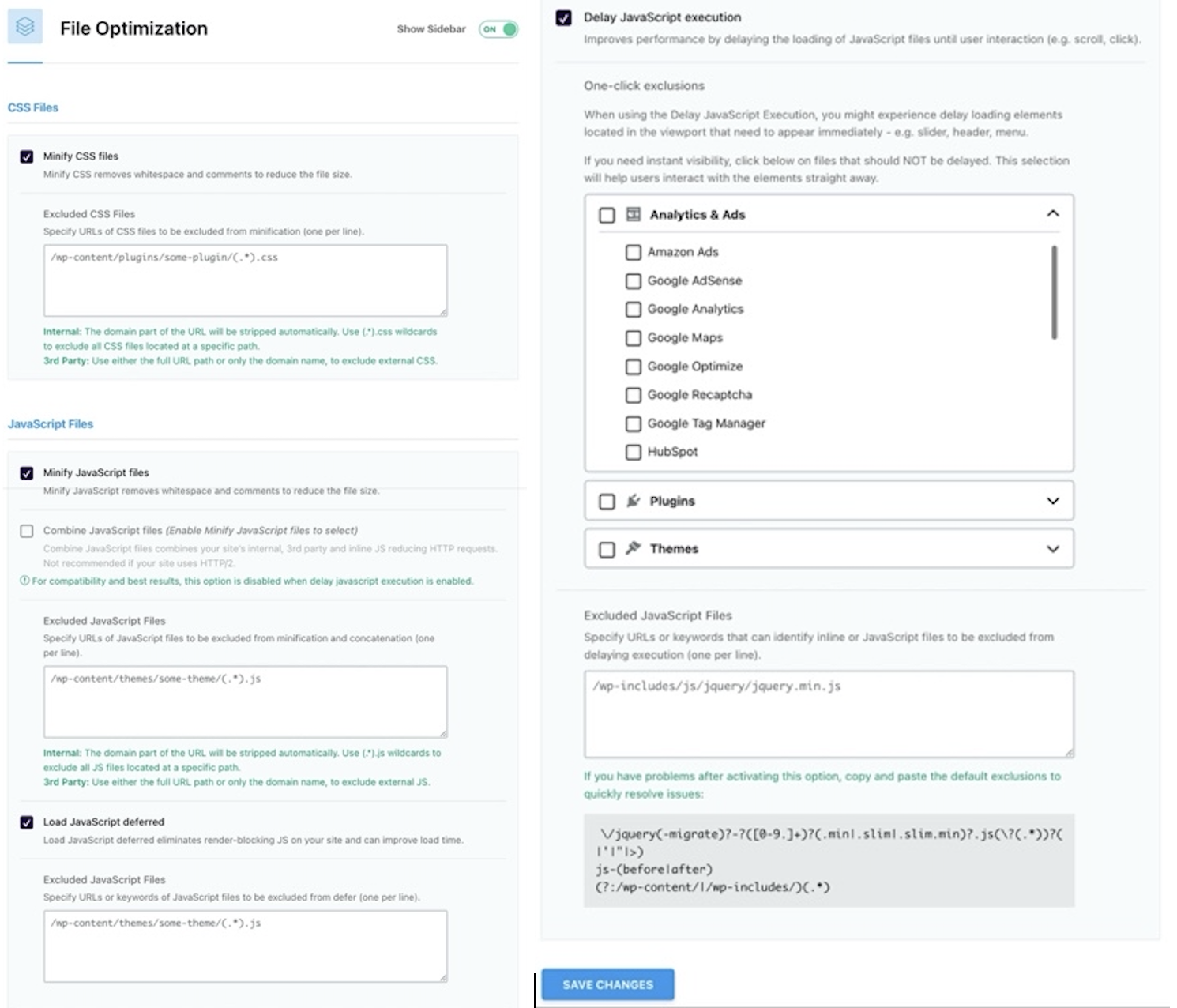
In the File Optimization section, WP Accelerate allows you to minify CSS and JavaScript files, combine them, and defer their loading. Here is the recommended configuration:
- Minify CSS files and Minify JavaScript files: Enable them to reduce the size of these files by removing whitespace and comments.
- Load JavaScript deferred: Keep this option enabled so that scripts load only when needed.
- Delay JavaScript execution: Enable this option to further improve performance by loading scripts only when the user interacts with the page.
2. Image Optimization
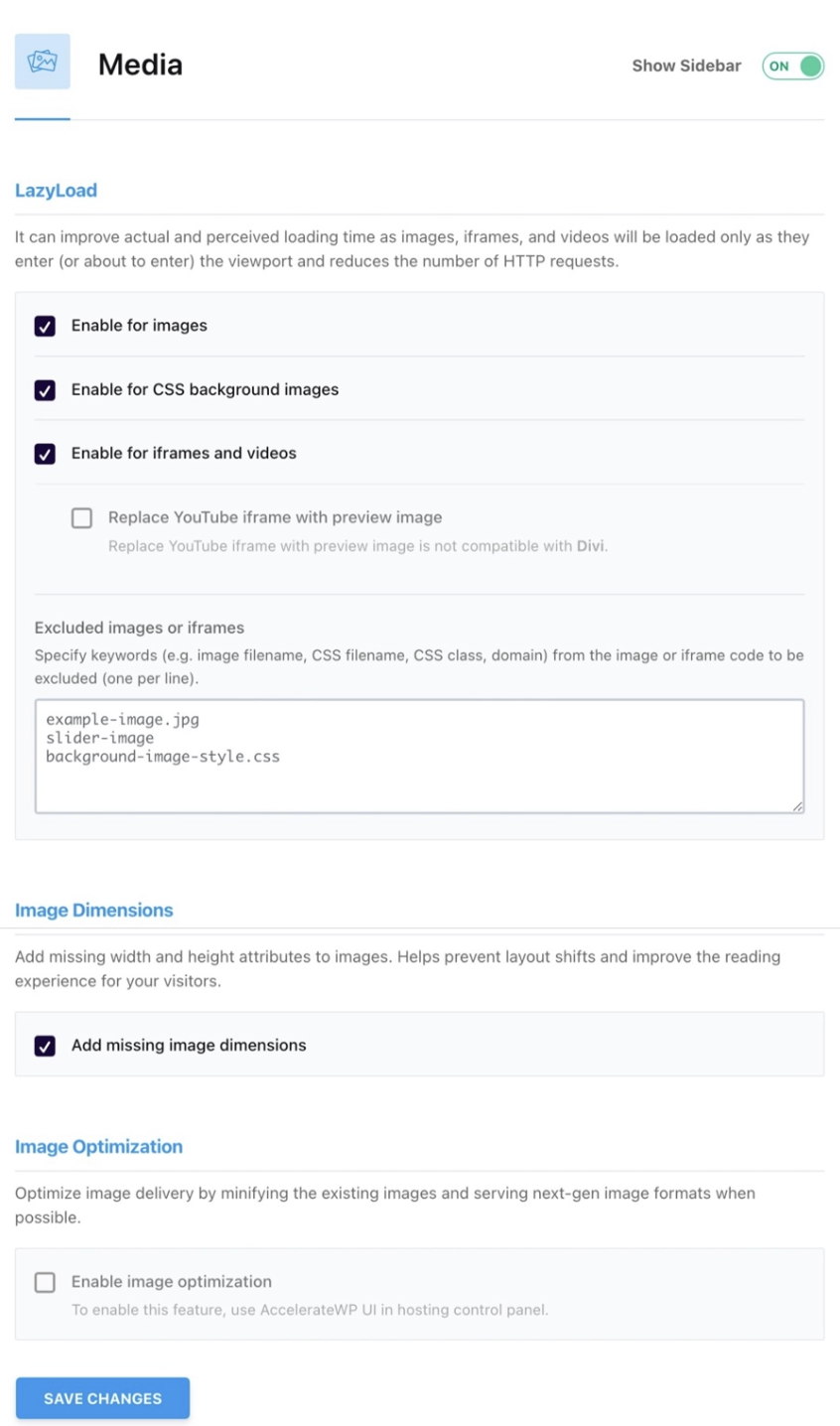
The Media Optimization section is essential for sites with many images. Enabling LazyLoad for images and videos can significantly reduce loading times.
- Enable for images, CSS background images, and iframes and videos: Enable these options so that media elements load only when the user scrolls to them.
- Add missing image dimensions: Make sure this option is enabled to prevent layout shifts during image loading.
3. Preload
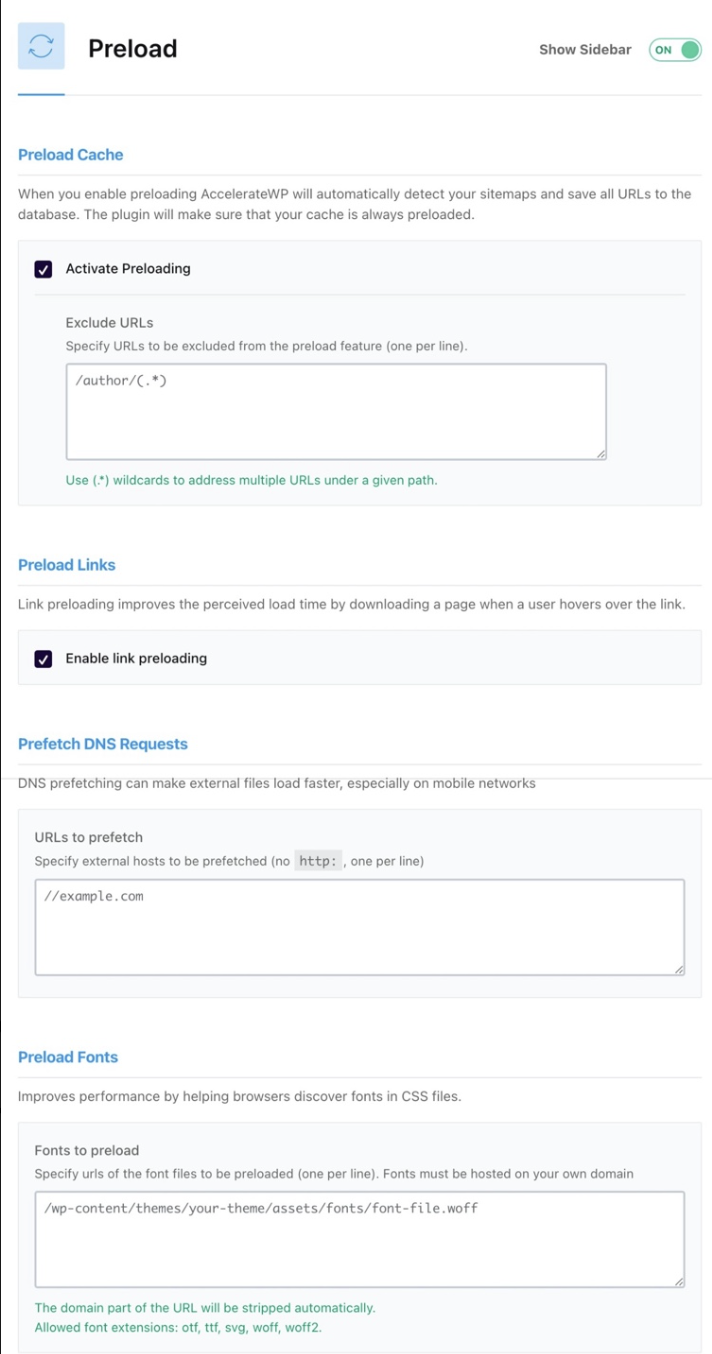
For static files to be served efficiently, the Preload Cache is essential. This option preloads the page cache, which means that when a user arrives at your site, the page is already ready to be displayed.
- Activate Preloading: Keep this option enabled.
- Preload links: Enable this option to improve perceived speed when users hover over links.
- Prefetch DNS requests and Preload fonts: Use these options to speed up the loading of external files, such as fonts or resources hosted on other servers.
4. Advanced Cache Settings
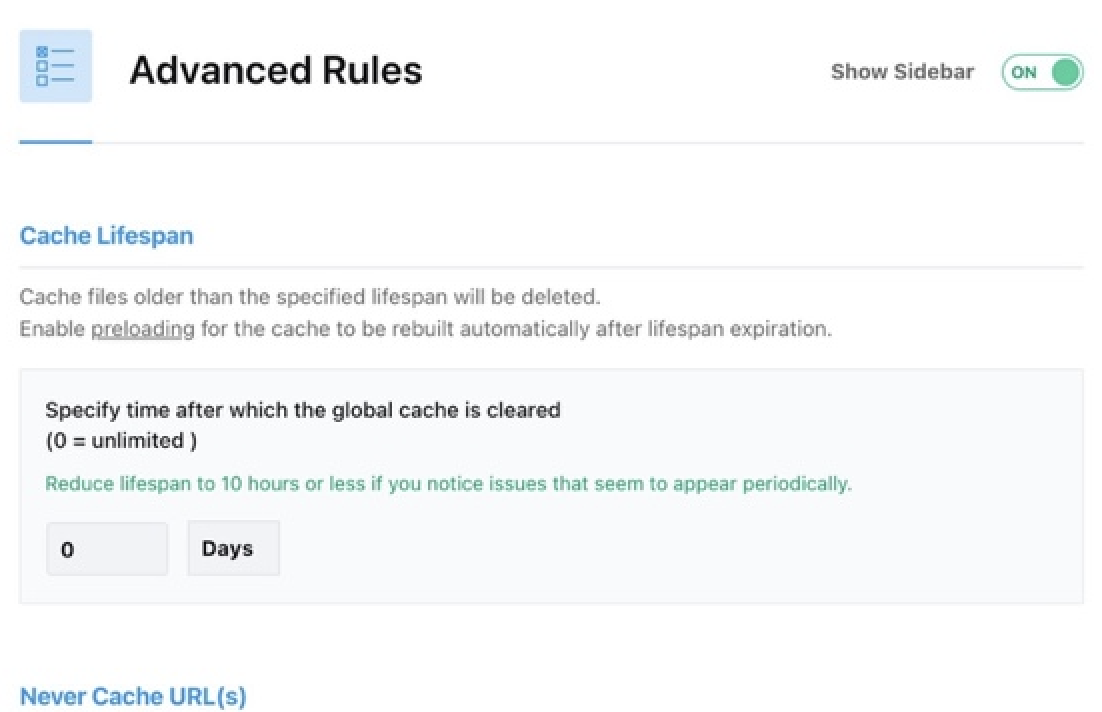
In the Advanced Rules section, you can customize how WP Accelerate handles the cache.
- Cache Lifespan: We recommend starting with a lifespan of 7 days.
- Always Purge URLs: Configure the key URLs that should be purged from the cache when you update a page or post.
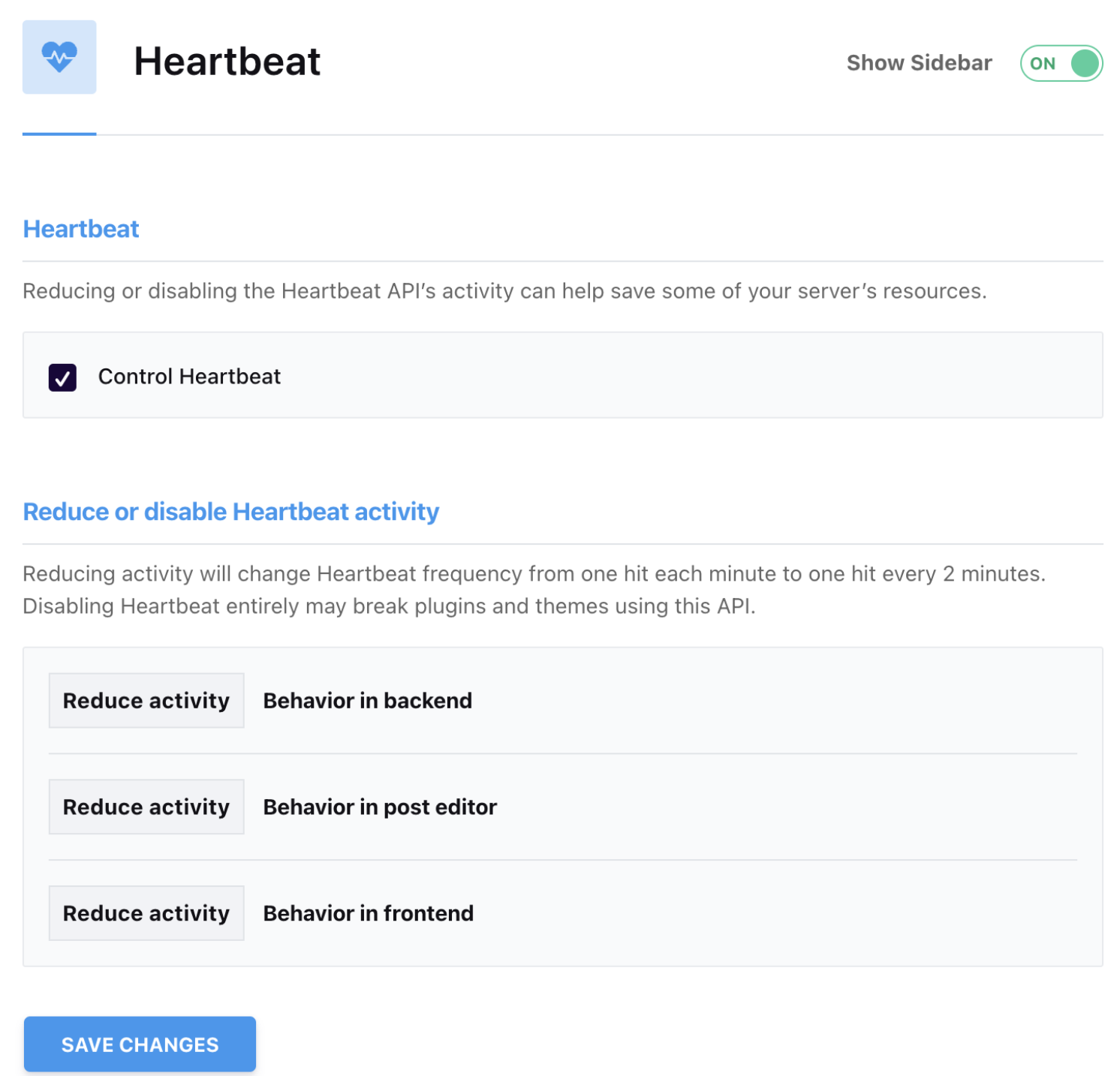
5. Heartbeat Optimization
The WordPress Heartbeat API is useful but can consume resources. In the Heartbeat settings, we recommend reducing its activity in both the backend and the post editor.
- Reduce activity in backend: Reduce the Heartbeat "pings" to one every two minutes to relieve the load on the server.
6. Database Optimization
In the Database Cleanup section, you can clean up post revisions, spam comments, transients, and more.
- Revisions and Auto Drafts: If you don't need to keep previous versions of posts, you can safely delete them.
- Transients Cleanup: Clean up transients to prevent unnecessary temporary data from accumulating.
If you have any questions about a specific feature, reach out to our support team, where our specialists can assist you with the configuration.